![Trainual Logo (White).png]](https://help.trainual.com/hs-fs/hubfs/Logo/Trainual%20Logo%20(White).png?height=39&name=Trainual%20Logo%20(White).png)
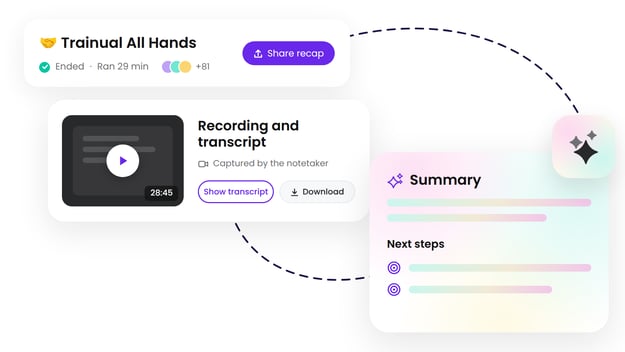
Talk now, take notes never! The Trainual notetaker records and transcribes your meetings for you, then turns them into an AI summary and suggested action items you can share with the whole invite list. Find out how you can put it to work. 👇
👉 Before you start:
- The meetings feature is available as part of the Operations suite. Contact our support team for any subscription help. 🤗
- Only the meeting owner can add the notetaker. For more details about meeting controls and permissions, check out our main "Meetings" article. ↗
- The notetaker requires a Google Meet, Zoom, or Microsoft Teams type conferencing link to join your meeting. Links on synced calendar invites carry over automatically — just remember to turn the notetaker on.
🗂️ Table of contents: Skip around to just the parts you need with these links.
Overview:
🎙️What does the Trainual notetaker help you do?
-
📜 Revisit every word by capturing a full transcript of your meeting's audio, complete with speaker names and timestamps, that your AI assistant can read.
-
🎥 Catch your out-of-office teammates up to speed with a downloadable meeting recording that is captured with audio (default) and/or video.
-
👀 Skim a high-level meeting summary using the editable, AI-generated recap.
-
✅ Turn talk into progress with recommended action items, based on what was actually discussed, that you can accept, assign, and carry into the next meeting.
-
🗃️ Keep everything in one place. Your meeting recaps live in Trainual right alongside your agendas, action items, scorecards, goals, and updates.
The best part? You get to actually be in your meetings while the Trainual notetaker listens, captures, and summarizes, so you can focus on the people in the room. 👏

Apply notetaker settings:
You can control the notetaker at three levels, from broadest to most specific.
| Setting level: | What it controls: | Where to find it: |
| 🙋 My default |
Whether the notetaker joins all new meetings you create or import. When you change this setting to be on, you can also apply the update to existing meetings you own. |
|
| 🗓️ Meeting series |
Whether the notetaker joins every occurrence of a recurring meeting series (or a one-off meeting series), and whether it has your permission to record a video. |
|
| 1️⃣ Single meeting |
Whether the notetaker joins the next upcoming meeting occurrence. After that meeting has concluded, the next one in the series goes back to your original meeting series setting. |
|
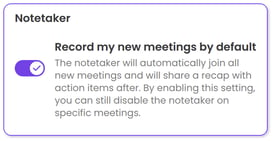
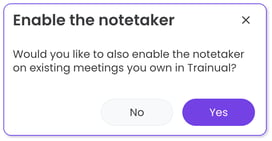
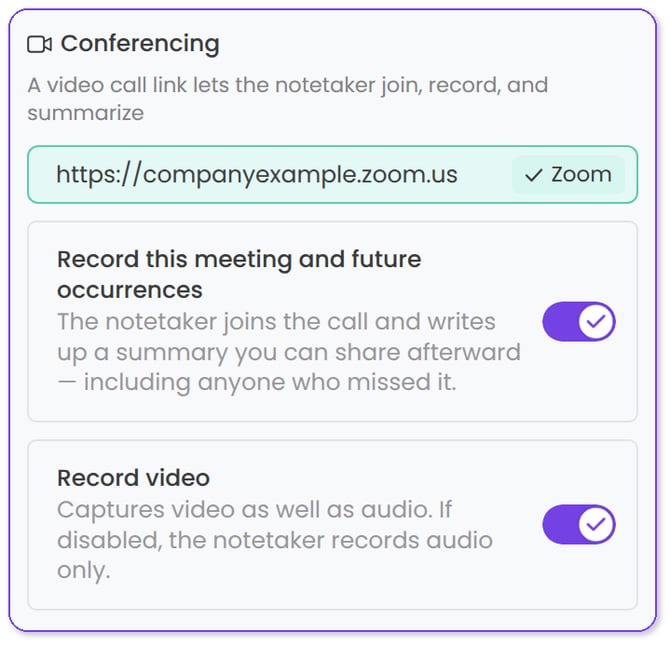
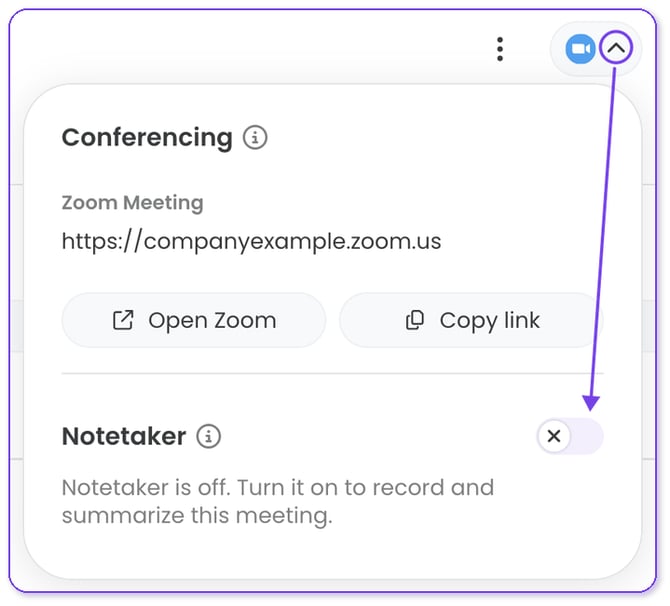
📝 Please note: When you create new meetings in Trainual, the recording settings will automatically match your "My default" settings, once a valid conferencing link is added. You can still turn the notetaker on or off for a series or a single meeting at any time.
Use the notetaker during live meetings:
Here's what to expect from the moment you hit "Start meeting" to after you wrap up.
- Hit the "Start meeting" button and join your video call as usual.
- Let the notetaker into the meeting (if required by your video conferencing tool).
- Check on the notetaker's status if it's your first time using the feature by opening the "Conferencing" flyout at the top of your live meeting.
- Hit the "End and recap" button to close out the meeting. The notetaker leaves the call automatically and starts generating your recap page.
💭 Strategy corner: Before running your first official notetaker-enabled meeting, try a practice run with a colleague, keeping these key points in mind.
|
Review and adjust your meeting recaps:
Once your meeting ends, a recap tab appears on your meeting's "Summary" section where you can make sure everything's in order before sharing it all with your team.
📋 Here's what you'll find on the "Summary" tab:
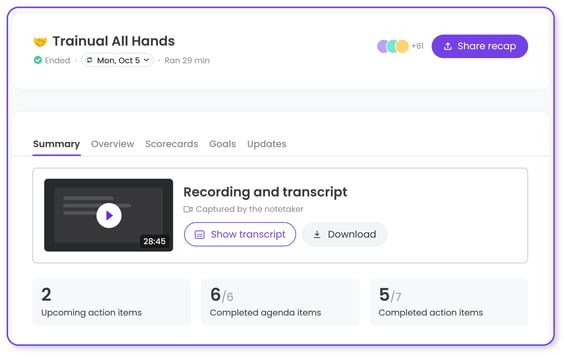
- 🔒 Non-editable portions.
- Meeting length: How long your meeting ran.
- Recording and transcript: The full conversation with speaker names and timestamps, plus a video download option of the recording (if enabled).
- Meeting stats: Provides a total count of upcoming action items, completed agenda items, and completed action items.
- ✏️ Editable portions.
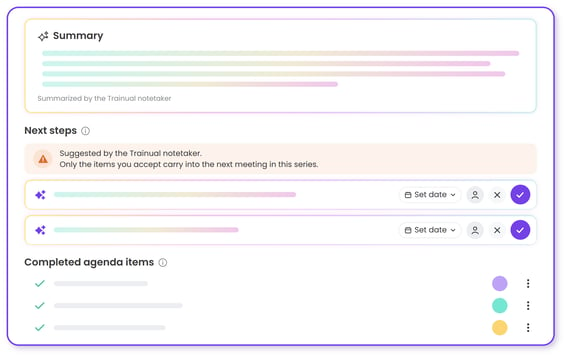
- Summary: An AI-generated overview of the full meeting.
- Next steps: A suggested action items list to accept, assign, or decline, alongside your completed agenda items.
- Completed agenda items: A checked-off list of items that were covered.
- 📬 Notification option.
- Share recap: When everything's been reviewed and set to your liking, hit the "Share recap" button. An email will go out to the entire attendee list.

- Share recap: When everything's been reviewed and set to your liking, hit the "Share recap" button. An email will go out to the entire attendee list.
🔥 Tip: Make fine-tuning your recaps a part of every meeting, and your team will always have one reliable spot to revisit conversations and catch up after time away. 🤩
FAQs:
Can I use the Trainual notetaker alongside another notetaker?
Totally — bring your other notetaker along for the ride! The biggest benefit of using the Trainual notetaker is keeping all your recordings, transcripts, summaries, and action items together in Trainual, right next to the rest of your in-app meeting details and info.
Can the AI assistant search my recorded meeting transcripts?
Yes it can! 🙌 Try asking your assistant questions like "What concerns did the team raise about the new scheduling system?" or "Summarize everything we've discussed with the Henderson account this quarter" to try it out.
Why do I have to admit the Trainual notetaker into my call?
If your video conferencing tool uses a waiting room, the Trainual notetaker waits there like any other guest until someone admits them. FYI — meeting admission settings are controlled by your conferencing tool, not Trainual. If your call has no waiting room, the Trainual notetaker will join automatically.
How can I submit my feedback and ideas about features?
If you'd like to share your thoughts on Trainual's notetaker or suggest something else you'd like to see added in the future, send us your feature requests and ideas.
Learn more about the Operations suite:
- Surface trends, patterns, and issues across your company using team pulse.
- Get detailed answers on your team's progress through scheduled updates.
- Check how everyone's work connects to the bigger picture with goals.