![Trainual Logo (White).png]](https://help.trainual.com/hs-fs/hubfs/Logo/Trainual%20Logo%20(White).png?height=39&name=Trainual%20Logo%20(White).png)
Scorecards turn your raw numbers into a performance story your whole team can read. Define your metrics, set your benchmarks, and get a clear view of performance that stays up-to-date on the rhythm you choose.
👉 Before you start:
- The scorecards feature is available as part of Trainual's operations suite, which includes three other powerful tools. ↗ Learn how to unlock all four here.
🗂️ Table of contents: Skip around to just the parts you need with these links.
Scorecards overview:
The best teams don't guess how they're performing — they measure it, track it, and talk about it together. Set your KPIs, define what "on target" looks like, and let the data be the loudest one talking.
📇 What makes scorecards a game-changer?
-
Trackable operational health with leading indicators and core metrics.
-
Recognizable trends and emerging issues before they impact results.
-
Informed, data-driven decisions turned into conversations by linking scorecards to meetings, so you review real numbers together, not assumptions.
With all of this working for you, the only thing left to do is build one. Here's how start. 👇

⏸️ Hold up... have existing scorecards? No need to rebuild everything on day one. Embed them first, then migrate into Trainual scorecards at your own pace.
Build a new scorecard:
Three steps — that's all it takes to go from zero to a fully built scorecard! Let's start. 🤓
🔹 Step 1 → To begin, you'll need to set up some scorecard basics.
- Expand "Operations" from the left-hand navigation menu.
- Choose "Scorecards."
- Hit the "Create scorecard" button.
- Fill out the basics.
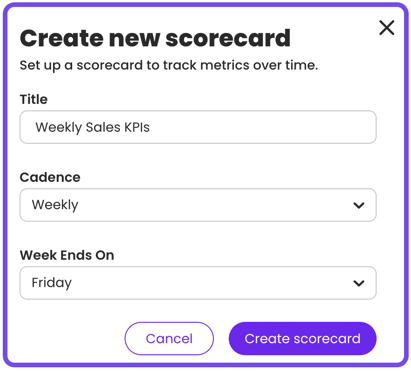
- Title. Name your scorecard clearly so your team knows what it tracks (e.g., "Weekly Sales KPIs" or "Q3 Customer Success Metrics").
- Cadence. Choose the frequency of scorecard data tracking: daily, weekly, or monthly.
- If weekly: Define the "Week ends on" day.
- Click the second "Create scorecard" button to continue.
🔹 Step 2 → Build out the metrics to be tracked on your scorecard.
- Open your scorecard.
- Hit the "+ Add row" button.
- Select the type of row metric you'll be entering.
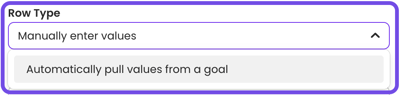
- Manual entry. Use this when the metrics to track aren't connected to anything else in Trainual. You'll enter the values yourself each period.
- Ideal when the metric lives only on your scorecard — like logging monthly new hires, customer satisfaction scores, or weekly pipeline value during the cadence you've set.
- Link values from existing goals. Use this when you want a scorecard row to automatically pull and display progress from an existing goal. Instead of entering those values in two places, the linked scorecard row automatically syncs with the goal's recorded progress.
- This is useful when you want the same metric visible in both your scorecard and your goal — like tracking "Q2 Revenue Targets."
- 📝 Please note: You'll only need to choose the existing goal to link and whether to keep the color threshold setting for this row entry, so you can skip down to step 6 when linking goal values.
- Manual entry. Use this when the metrics to track aren't connected to anything else in Trainual. You'll enter the values yourself each period.
- Name your row.

- Choose a precise metric name that will clearly reflect what's being measured in the row you're creating. This is what your team sees on the scorecard, so specificity matters (e.g., "Weekly Close Rate (%)")!
- Decide the metric type and its values to be measured against. This will be the benchmark that your actual results will be compared to.
- Stay below. Define a maximum value. Results should stay under it.
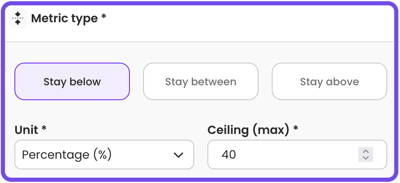
- Unit. Select the format — Number (0.000), Currency ($0.00), or Percentage (0.000%).
- Ceiling (max). Enter the highest acceptable value for this metric.
- Stay between. Define a minimum and a maximum value. Results should stay within that set range.
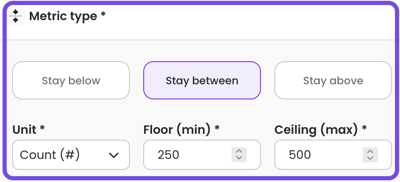
- Unit. Select the format — Number (0.000), Currency ($0.00), or Percentage (0.000%).
- Floor (min). Enter the lowest acceptable value for this metric.
- Ceiling (max). Enter the highest acceptable value for this metric.
- Stay above. Define a minimum value. Results should stay over it.
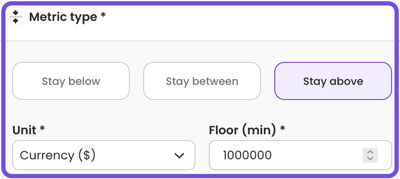
- Unit. Select the format — Number (0.000), Currency ($0.00), or Percentage (0.000%).
- Floor (min). Enter the lowest acceptable value for this metric.
- Stay below. Define a maximum value. Results should stay under it.
- Keep color coding thresholds toggled on or turn them off. When enabled, you’ll define your color thresholds (red, yellow, green) based on value ranges and choose whether higher or lower values indicate a better performance.
- Example of higher values being better performance:
- 🟩 Green (best) → 🟨 Yellow → 🟥 Red (worst)
- Scenario: Increased revenue. 📈
- Example of lower values being better performance:
- 🟥 Red (best)→ 🟨 Yellow → 🟩 Green (worst)
- Scenario: Lower churn. 📉
- Example of higher values being better performance:
- Click the "Add row" button to apply your new metric.
🔂 Repeat steps as many times as needed to build out all of your scorecard rows.
🔹 Step 3 → Enter your scorecard data.
- Open your scorecard.
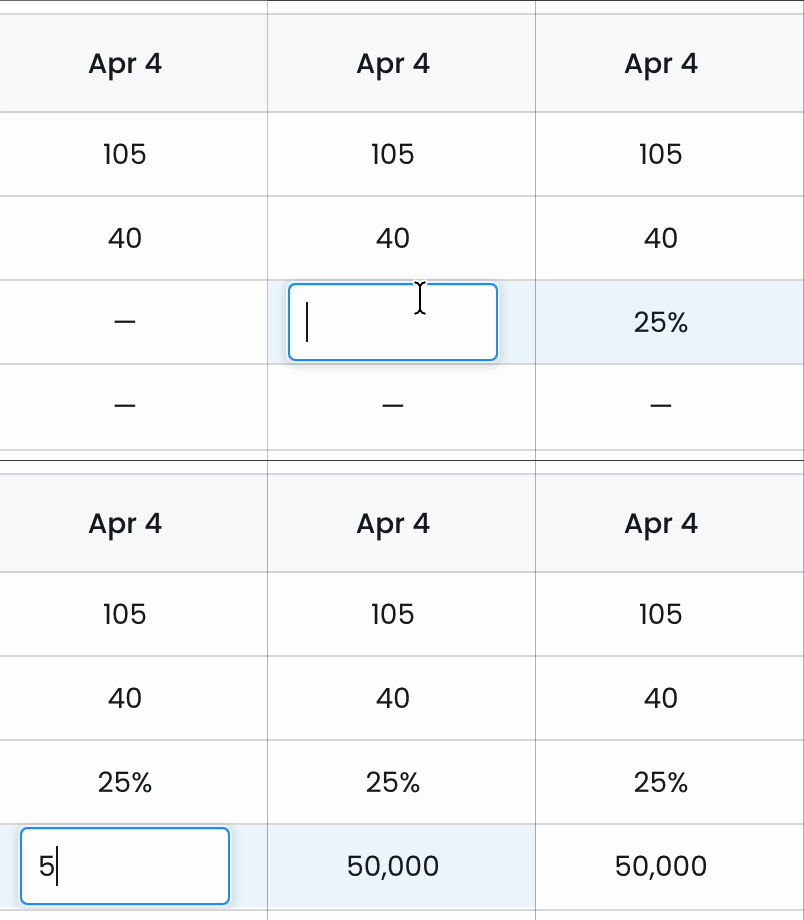
- Find the row (metric) and column (date or month) you want to add to.
- Click into the cell.
- Input your value.
- Hit "Enter" to save it.
🔥 Tip: Made a mistake? 😱 No worries! 😮💨 Just click into the cell you need to change → correct the value → hit "Enter" to replace the entry.
Embed a live, external spreadsheet as a scorecard:
Jump-start things with what you have. Embed existing spreadsheets as scorecards so your team can start referencing them alongside the scorecards you'll build natively.
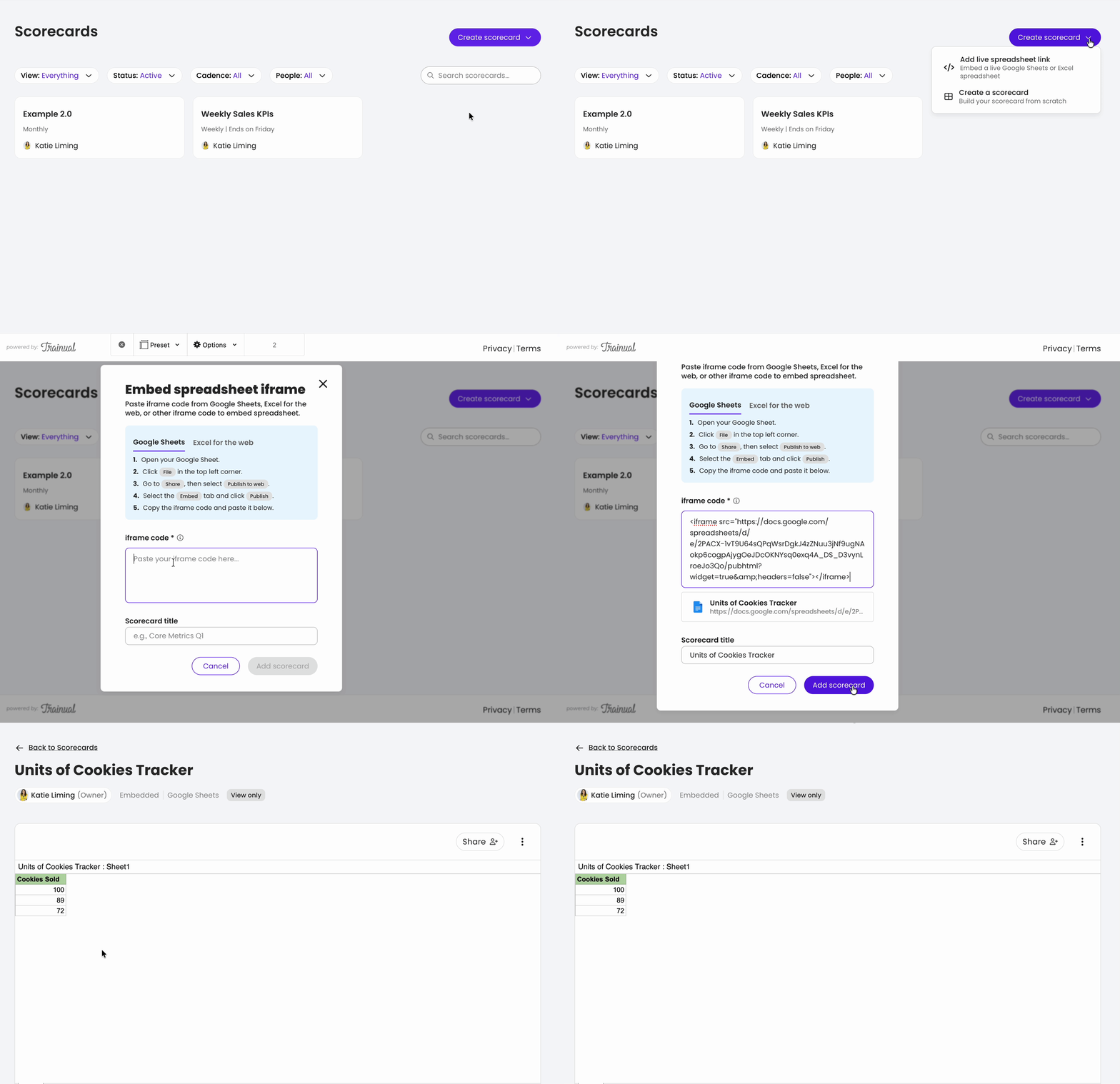
➕ Add an embedded spreadsheet as a scorecard in Trainual.
- Expand "Operations" from the left-hand navigation menu.
- Choose "Scorecards."
- Hit the "Create scorecard" button.
- Select "Add live spreadsheet link" from the drop-down.
- Paste your external iframe code into the text box.
- Adjust the "Scorecard title," if needed.
- Click the "Add scorecard" button to add it.
📝 Please note: Embedded spreadsheets are view-only in Trainual, but edits made to the original file will reflect automatically — just refresh in Trainual when they go live. 🔄
📗 Get your iframe code from Google Sheets.
- Open your Google Sheet.
- Click "File" in the top left corner.
- Go to "Share", then select "Publish to web."
- Select the "Embed" tab and click "Publish."
- Copy the iframe code and open Trainual.
- Follow the "Add an embedded spreadsheet" steps to get it into Trainual.
📘 Get your iframe code from Excel for the web.
- Open your workbook in Excel for the web.
- Click "File" in the top left corner.
- Go to "Share", then select "Embed this workbook."
- Copy the "Embed code" and open Trainual.
- Follow the "Add an embedded spreadsheet" steps to get it into Trainual.
Manage your existing scorecards:
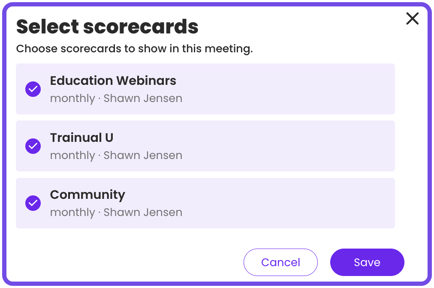
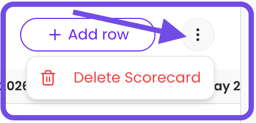
Use the following feature tools to link, adjust or change things, and delete scorecards.
|
|

|
|

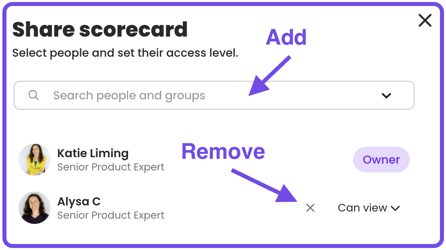
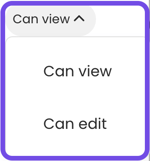
|
|
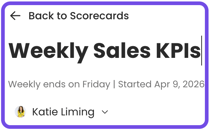
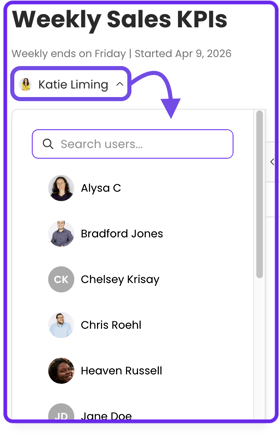
🔁 Change the owner of the scorecard.
|
|
|
Filter the view of your scorecards:
Use the filters at the top of the scorecards page to quickly narrow down what you see.
📑 View
| "Everything" to display all scorecards you have visibility into. |
| "Mine" to show scorecards you directly own or have been assigned to. |
| "People I manage" to view scorecards owned by the people you directly manage. |
🗓️ Cadence
| Daily. | Weekly. | Monthly. |
👥 People & teams
Filter by specific people or groups.
Tips and additional resources for scorecards:
🎁 Bonus learning
Explore these extra materials to expand your understanding of how to set scorecards.
- 👨🏫 On-demand learning: Operations suite basics — super quick workshop.
- ♟️ Strategy guide: How to roll out the operations suite.
FAQs:
How can I ensure my Google Sheet data and info are secure when publishing it to the web for embedding?
When publishing your Google Sheet, we recommend setting the access level to your organization's workspace. To do this, under the embed tab, locate "Published content & settings," select "Restrict access to the following," and grant access.
This ensures that only those signed into your company's Google account can view the embedded content. Anyone not signed in or outside your organization will see a message like: "Can't access your Google Account. We can't access this content right now. Try signing into your Google account or allowing cookie access to proceed."
Are scorecards available on the Trainual mobile app?
Not yet. But this is on our roadmap. Stay tuned! 🛣️
How can I submit my feedback and ideas about features?
If you'd like to share your thoughts about the operations suite or think of something else you'd like to see added in the future, send us your feature requests and ideas.
Learn more about Trainual:
- Add-on the training suite so all your who does what and hows are captured.
- Access a library of 400+ expert-built training courses to stay compliant.
- Consistently onboard and educate your team at scale using training paths.