![Trainual Logo (White).png]](https://help.trainual.com/hs-fs/hubfs/Logo/Trainual%20Logo%20(White).png?height=39&name=Trainual%20Logo%20(White).png)
Documenting responsibilities creates ownership around what each teammate or group is accountable for. Pair it with supporting content, and duties are easily reinforced!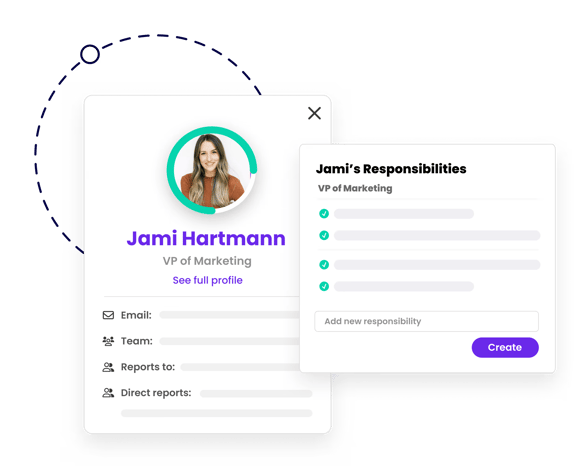
👉 Before you start:
- This feature is available under all Trainual plans.
- Group-related responsibilities can only be viewed and managed by group managers and Admins. Review this groups guide before getting started.
- Other responsibilities, listed under a user profile, can be added by someone's group manager, any teammates they directly report to, or Admins.
🗂️ Table of contents: Skip around to just the parts you need with these links.
Add a group responsibility:
- Click "Groups" from the left-hand navigation bar.
- Open the group you want to edit.
- Locate the"Responsibilities" section in the "Overview" tab.
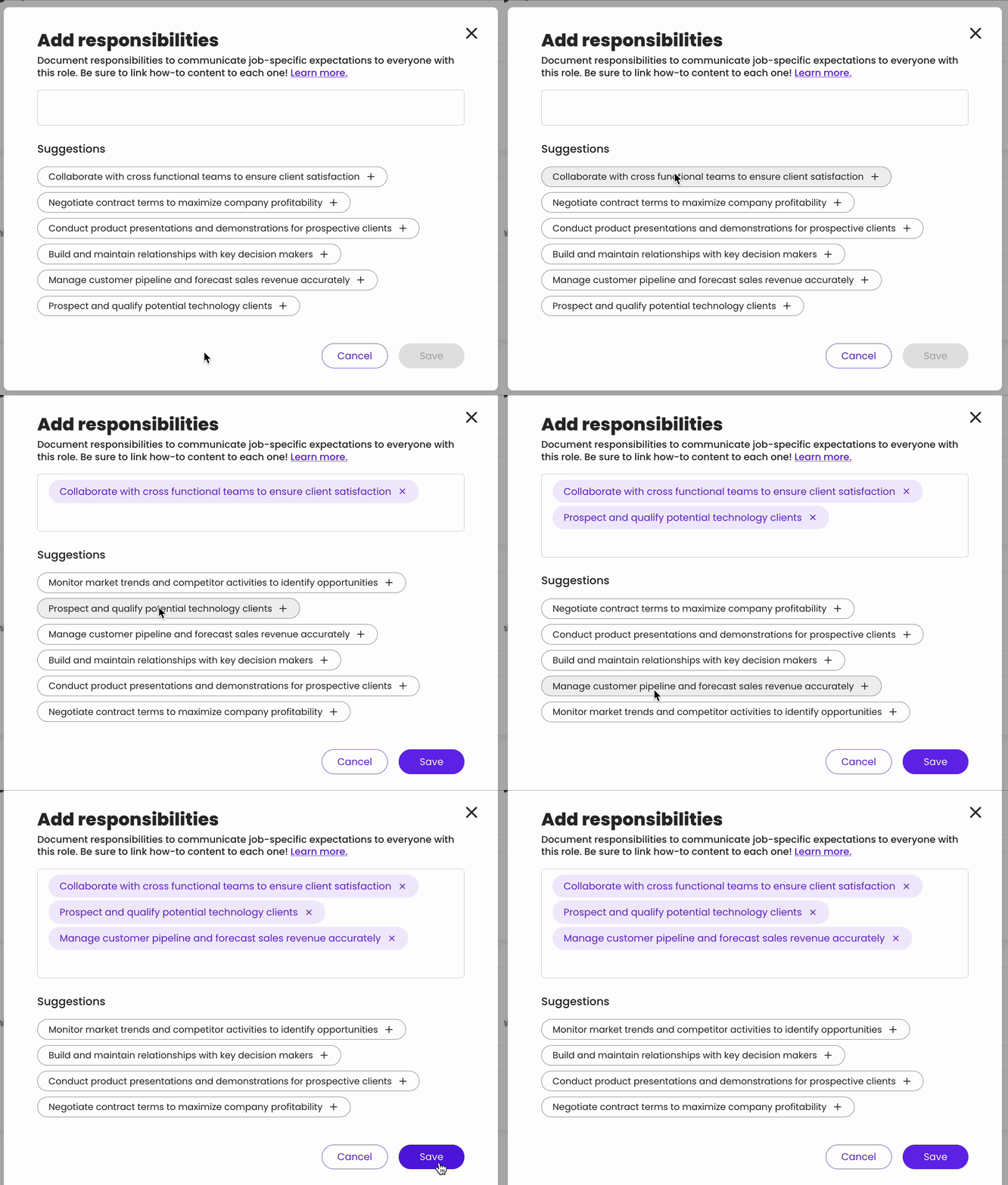
- Hit the "Add responsibilities" button to access quick suggestion options.
- Click "Save" to apply your changes.
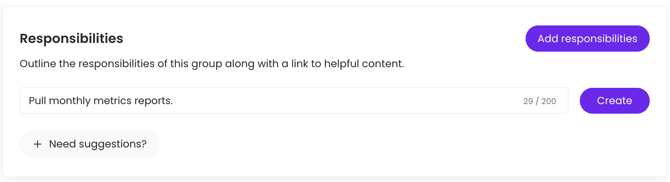
📝 Please note: For custom additions, type out your responsibility into the textbox, then press "Create."
Add an individual user responsibility:
- Expand the "Account" options from the left-hand navigation menu.
- Choose "Manage users."
- Open the teammate's profile you want to edit by clicking on their name.
- Locate the "Other responsibilities" section.
- List any additional duty or task they're accountable for within the textbox.
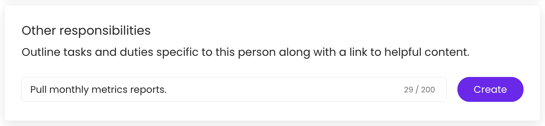
- Hit the "Create" button to apply your changes.
Repeat this process as many times as you need, so that you won't be hearing...

Link responsibilities to content:
Take accountability to the next level by linking content to each responsibility for more insight(s) so your teammates aren't left guessing. 💡
- Click on any existing responsibility.
- Locate the "Connected content" section in the pop-up window.
- Hit the "Connect" button to seach for and select relevant Trainual content.
- Click "Connect content" to apply your changes.
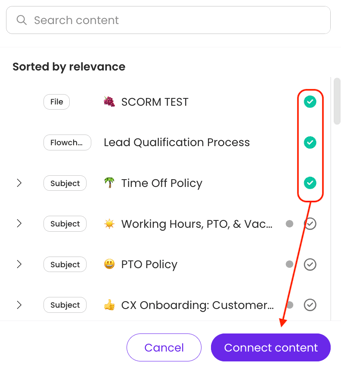
🔥 Tip: Have relevant external resources you’d like to connect? Simply expand the drop-down menu on the “Connect” button and select “From URL.”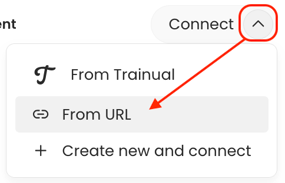
Beef up responsibilities with the Delegation Planner™:
The Delegation Planner™ is your visual aid for managing shifting responsibilities as your team grows and changes. Imagine being able to...
- Set responsibility time commitments by day, month, quarter, or year.
- Add responsibility descriptions for clarity and transparency.
- Create responsibility ratings that you could rate a person on a scale of 1-5.
- And more! 🤩 Check out the full details in our walkthrough guide.
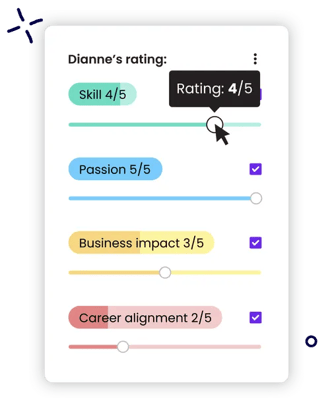
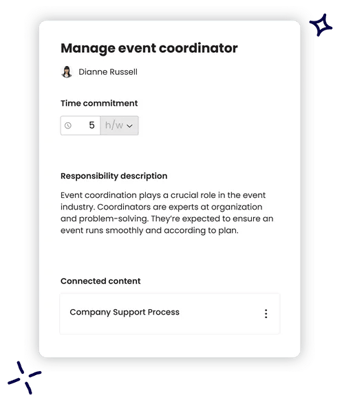
📝 Please note: The Delegation Planner™ is only available under specific Trainual plans. Contact our support team if you need help with your subscription.
Remove a responsibility:
- Click on any existing responsibility.
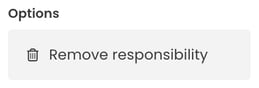
- Locate the "Options" section in the pop-up window.
- Hit the "Remove responsibility" button.
- Click "Save changes" to apply your update.
📝Please note: Responsibility removals are tracked under latest activity reports, but know that these cannot be directly recovered or reapplied. 
Learn more about optimizing your training
- Use proven learning design to take your content from "meh" to "wow!"
- Check if your third-party tools are compatible to use inside Trainual.
- Create your scalable company playbook using this free Trainual masterclass.