![Trainual Logo (White).png]](https://help.trainual.com/hs-fs/hubfs/Logo/Trainual%20Logo%20(White).png?height=39&name=Trainual%20Logo%20(White).png)

Whether it's teammates spotlighting a job well done or asking a manager for honest input, praise and feedback put performance conversations right where your team already works. No more saving it all up for the next review!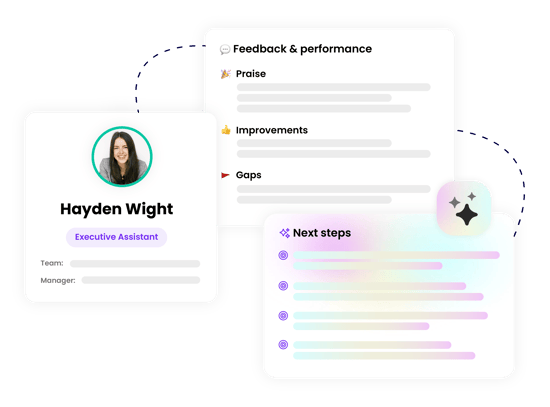
👉 Before you start:
-
The praise and feedback feature is available as part of the Performance suite. Contact our support team for any subscription help. 🤗
-
Permissions aren't one-size-fits-all here — see the relevant sections below (praise, feedback, or requests) for the specific level breakdowns that apply.
🗂️ Table of contents: Skip around to just the parts you need with these links.
Overview:
Make recognition, coaching, and honest inputs part of your team's everyday company rhythm with praise and feedback. The results — celebrated wins, guided growth, and a fuller picture of performance all year-round.
👋 Meet the three ways that make this happen:
- 🥳 Praise. Celebrate those day-to-day, week-over-week wins out loud, where the whole team can acknowledge it and pile on some fun reactions.
- 🗣️ Feedback. Share recognition, coaching, or useful performance context privately, with the right people in the loop.
- ✒️ Request feedback. Directly ask for perspective, about yourself or about someone in your reporting chain, gathered in the moment instead of waiting for a formal review.

Praise:
Call out great work when you see it using the public praise feature, where recognition can boost morale beyond just the person receiving it.
-
Every active user in your performance suite can submit public praise.
-
Once praise is given, it's visible to every active user in your performance suite, and anyone can react to it, regardless of their permission level.
-
Expand "Performance" from the left-hand navigation menu.
-
Select "Praise and feedback."
-
Hit the "New" button.
-
Choose "Give public praise" from the drop-down menu.
-
Add one or more individual users or select groups under "Who are you recognizing?"
-
Write out your praise. Be sure to include specifics and why they were impactful.
-
Hit the "Send praise" button to post your praise.
📝 Please note: Praise can't be made privately at this time. To recognize someone privately, use the feedback feature and share it with a specified audience instead.
Private feedback:
Share recognition, coaching, or other performance feedback privately, with control over whether it goes to the employee, through their management chain, or both.
-
Billing Admins can always see all feedback given, company-wide.
-
Anyone who sends feedback can always view what they've submitted.
-
The sender decides on the audience — that individual only, that individual + their manager(s), or their manager(s) only — this determines who can view the submitted feedback.
-
Expand "Performance" from the left-hand navigation menu.
-
Select "Praise and feedback."
-
Hit the "New" button.
-
Choose "Give private feedback" from the drop-down menu.
-
Add the individual user you'd like to provide feedback to under "Who is this feedback about?"
-
Write out your feedback. Be sure to include specifics to make the feedback constructive.
-
Decide who can view this private feedback under "Who else can see this?" (the options update based on the person you selected).
-
Individual only. Feedback is shared privately between you and them.
-
Individual + their manager(s). The person and up their full management chain can see the feedback.
-
Their manager(s) only. The person will have no visibility or notification about this feedback. Only their manager and up their full management chain can see the feedback.
-
-
Hit the "Send feedback" button to send out your feedback.
Request private feedback:
When you want an honest, focused perspective — on yourself or someone you manage — request private feedback instead of waiting for someone to offer it.
| 👤 Permissions + requesting private feedback → |
-
Billing Admins can request or see feedback about anyone, company-wide.
-
Managers can request feedback about their direct reports, all the way down their reporting chain.
-
Every active user in your performance suite can request self-feedback.
-
Expand "Performance" from the left-hand navigation menu.
-
Select "Praise and feedback."
-
Hit the "New" button.
-
Choose "Request private feedback" from the drop-down menu.
-
Add the individual user (yourself or someone else) that you'd like to receive feedback about under "Who is this feedback about?"
-
Decide the individual user(s) who should provide the feedback under "Who should give the feedback?"
-
Write out focused questions or prompts that the feedback should cover. The more specifics provided, the more constructive the feedback can be!
-
Decide who can view this private feedback under "Who else can see all responses?"
-
Individual only. Feedback is shared privately between you and them.
-
Individual + their manager(s). The person and up their full management chain can see the feedback.
-
Their manager(s) only. The person will have no visibility or notification about this feedback. Only their manager and up their full management chain can see the feedback.
-
-
Hit the "Send request" button to request feedback.
📝 Please note: If you don't have any direct reports, you'll only be able to request feedback about yourself under the "Who is this feedback about?" field.
About the feedback flow.
[Coming soon 🏗️]
Filter the view of your praise and feedback:
Switch between tabs to jump to and from praise, feedback, and request viewing, then use the drop-downs to filter by search, received vs given, timeframe, or people.
| Filter type: | Filter actions: | What it does: |
| 🔎 Search | Keyword | Finds praise, feedback, or requests matching a specific word or phrase. |
| 🤲 Show | All · Received · Given | Narrows results by direction — what you've received vs. what you've given. |
| 🕰️ Time | All time · Last 30 days · Last 90 days · Last 6 months · Last 12 months | Displays praise, feedback, or request results that match a specific timeframe. |
| 👥 People | All | Shows results for praise, feedback, or requests involving your teammates. |
Additional resources about praise and feedback:
Take your reviews into the stratosphere with these other great learning resources.
-
👨🏫 Live learning sessions: "Performance Party" webinar.
-
⚡ Quick start guide: Performance Suite.
-
♟️ Strategy guide: How to Build a Performance Culture.
FAQs:
Does Trainual offer AI tools to create or complete praise and feedback?
Our AI Assistant can access the Performance suite features and info you have access to, but further AI and smart-assist tools are in the works on our roadmap. Stay tuned! 🛣️
Can I edit or delete praise or feedback once it's been sent out?
Praise and feedback can't be edited after it's sent, but it can be deleted by a Billing Admin. We advise thoroughly reviewing your submissions before posting.
Can I add a comment to a piece of praise or feedback?
Not yet. But this is on our roadmap. Stay tuned! 🛣️
How can I submit my feedback and ideas about features?
If you'd like to share your thoughts on the Performance suite or suggest something else you'd like to see added in the future, send us your feature requests and ideas.
Learn more about Trainual:
- Add-on the training suite, capturing exactly who does what — and how.
- Take control of team plans and follow-throughs with the operations suite.
- Become a Trainual pro and stay up to date on new features with Trainual U.