![Trainual Logo (White).png]](https://help.trainual.com/hs-fs/hubfs/Logo/Trainual%20Logo%20(White).png?height=39&name=Trainual%20Logo%20(White).png)
Updating content just got a whole lot faster. Whether you're refreshing policies, smoothing out dense writing, or rewriting for a whole new audience, just describe the change and your AI assistant will highlight and propose edits right inside the content. Review, accept, and move on — simple as that. 😎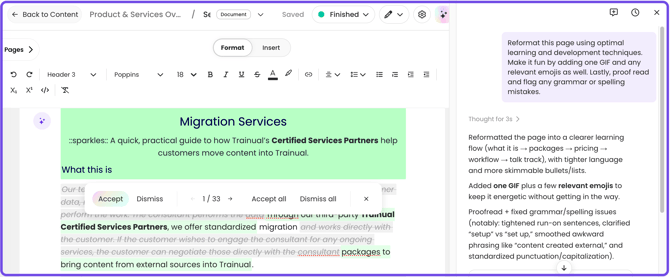
👉 Before you start:
- If you are not familiar with Trainual's AI assistant, start here.
- The AI assistant feature is available under all Trainual plans.
- Everyone has automatic access to their own personal AI assistant when AI account settings are enabled, but the results in those chats and the ability to create content using the AI assistant will be based on...
- Set user permissions.
- Content access levels.
- Directory and org chart settings.
🗂️ Table of contents: Skip around to just the parts you need with these links.
Overview:
AI content building and editing is an expansion of your AI assistant that lets you make changes to any existing document or page just by describing what you want. It's like having an always-on editing partner that's ready to help you shape your content.
🌟 Team up with your AI assistant to...
- ✍️ Get in place content or change proposals. Edits are highlighted directly in your content for easy review.
- ✅ Accept or reject updates, line by line. You stay in full control at all times.
- 🧠 Include context from your other training. Pull info from elsewhere in your Trainual (like your company mission or core values) without leaving the page.
The fun part's next — putting it to work. Keep reading to see how. 👇
Access the AI assistant:
This feature lives inside the same AI assistant you already know — it just activates when you prompt it to and in the area you need to work on.
-
Open any document or page in your Trainual account.
-
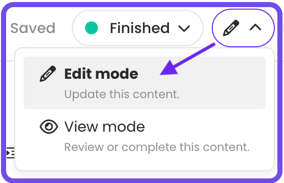
Enter "Edit mode."
-
Open your AI assistant using the starry icon (✨) in the top navigation bar
-
Or use the hot key: "⌘ + K" on Mac or "Ctrl + K" on PC.
-
-
Describe what you need for your content in the chat panel.
📝 Please note: You have to be in "Edit mode" on the content you want to work on for the AI assistant to make new content for or changes to a document or page . If you’re just viewing any other area in Trainual, the assistant will only be able to answer questions.
Build and edit with the AI assistant:
Here’s what that flow looks like end-to-end.
-
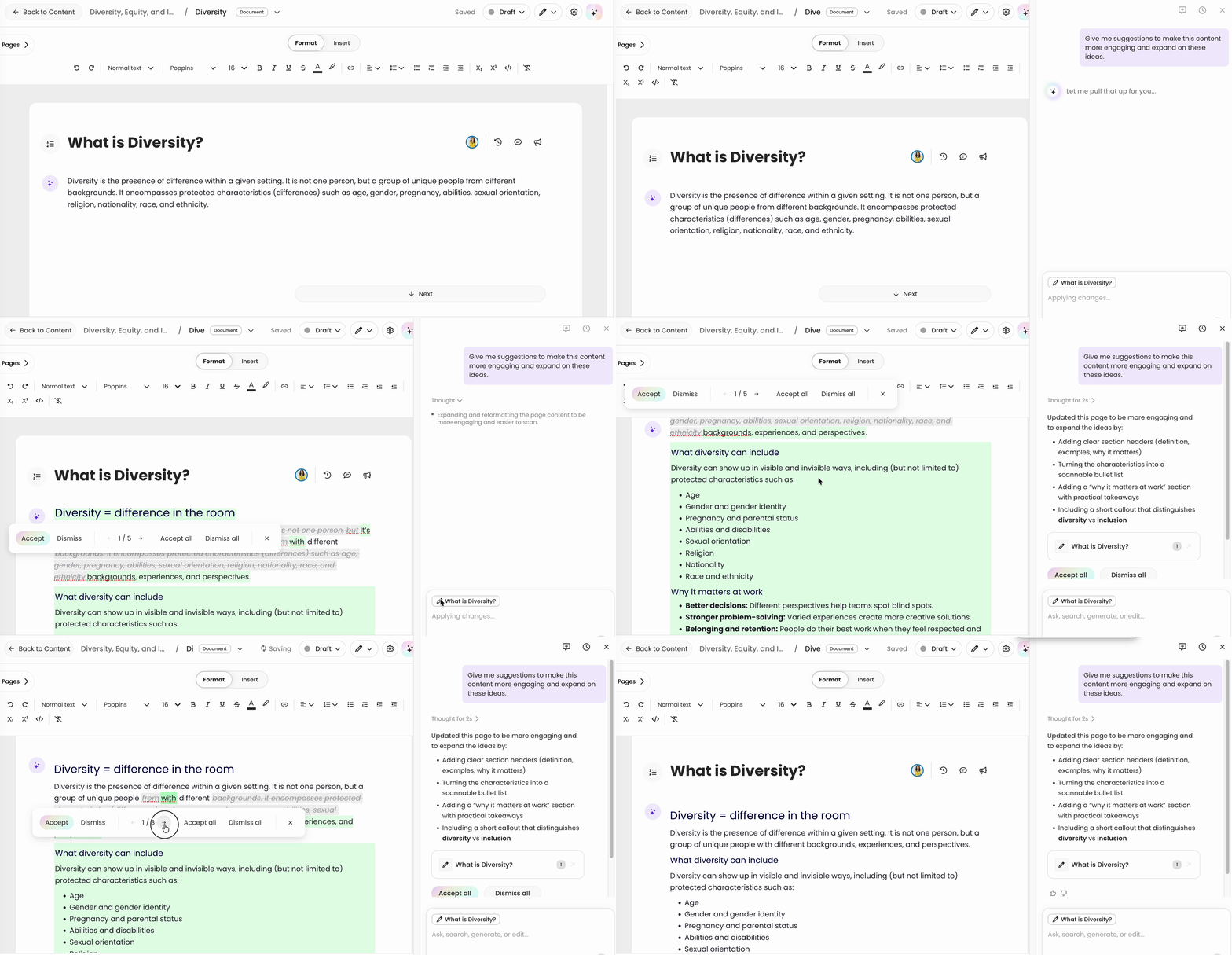
Type a request into the AI assistant. Something like “Rewrite this for a first-week hire” or “Add a section on refund exceptions.”
-
Review the proposed additions and changes. AI suggestions appear inline, highlighted, so you can see exactly what the assistant wants to add or change.
-
Accept or reject each suggestion. Keep what works, toss what doesn’t.
-
Updates you've approved save automatically as you go.
📝 Please note: Nothing is overwritten behind the scenes! Until you actually accept a proposed change, your original content stays exactly as it is.
Examples:
Not sure where to start? Here are some useful tips and ways to work this feature! 💪
| 🛠️ Use case | 🤖 Prompt example |
| 🔄 Update existing content when something in the business changes. | “Update the PTO policy updates on this page to reflect 15 days instead of 10.” |
| ✏️ Use it as a proofreader for a quick pass on grammar, clarity, and tone. | “Fix any typos, make suggestions for run on sentences, and tighten up how-tos.” |
| ➕ Expand existing content by adding new sections or fleshing out what’s there. | “Add content covering common customer objections not already mentioned here.” |
| 🗣️ Standardize terminology or voice across content. | “Make the tone of this content match the rest of our onboarding content.” |
Additional feature tools:
- 🔍 Find & replace. Ask the assistant to find a word or phrase in your content and work through that sourced list to update what needs to be changed.
- 🏗️ More to come. Stay tuned!
Best practices:
Get better results with these quick pointers. 👩🏫
| 💡 Suggestion: | 📖 Description: |
| 🎯 Be specific about the change. | Clearer requests = better results. Example ↓ * 👎 Vague: “Make this better.” * 👍 Specific: “Rewrite this section in a more casual tone and add a bullet list of key steps.” |
| 🧭 Point to what you want changed. | Select the text you want to change with your cursor, then enter your prompt. The assistant will only suggest edits for the selected content (indicated by a badge in the assistant). |
| ↩️ Iterate follow-ups in the chat. | Don’t love the AI's first pass? Keep chatting. The assistant remembers the context and can refine its suggestions. |
| 🧐 Review before accepting. | Always scan proposed edits, especially for policy, compliance, or brand-sensitive content, before clicking accept. |
| ♨️ Hot key launch. |
To open the AI assistant anywhere in Trainual:
|
FAQs:
Is AI content building and editing available on the Trainual mobile app?
No — our mobile app is not intended for content creation. It is optimized for training.
Can I undo a change after I accept it?
You can undo recent changes using "⌘ + Z" on Mac or "Ctrl + Z" on PC (before navigating away from the content you're working on) or restore a prior copy of your content using version history.
Does any of our data leave Trainual when using AI content building and editing?
Trainual uses OpenAI’s paid API to generate responses and proposed edits. Content you submit is processed securely and temporarily — it is not stored or logged beyond 30 days, or used to train OpenAI’s models. OpenAI’s ongoing model improvements occur independently of Trainual customer data.
How can I submit my feedback and ideas about Trainual features?
If you'd like to share your thoughts about the AI assistant or think of something else you'd like to see added, send us your feature requests and ideas.
Learn more about AI-powered Trainual tools:
- Enhance your existing content with the smart tools drop-down menu.
- Auto-create outlines and starter material, so you just have to fill in blanks.
- Save time creating your role chart using AI-powered automation.