![Trainual Logo (White).png]](https://help.trainual.com/hs-fs/hubfs/Logo/Trainual%20Logo%20(White).png?height=39&name=Trainual%20Logo%20(White).png)
Meet your team where they work the most! The Trainual + Slack integration brings your company's knowledge into Slack, so people can get answers and stay on top of their work without switching tools. 🚀

- The Trainual + Slack integration is available under all Trainual plans.
- You need an Admin+ permission level in Trainual to set up the integration for your company. Individual users then connect their own profiles from Slack.
- Access to the Trainual assistant feature requires a paid Slack plan.
- ⚠️ Existing customers: A new version of the Slack integration, with access to the Trainual AI assistant, is coming in November 2026. When it launches, your current integration connection will disconnect, and a Slack workspace Admin (who must also be an Admin+ in Trainual) will need to re-authorize the app. This takes about 30 seconds. Each user then reconnects their own profile.
🗂️ Table of contents: Skip around to just the parts you need with these links.
Overview:
Picture this — A teammate asks inside a busy channel where the refund process lives. Instead of someone digging for a link, they @mention Trainual and get the answer in the thread, with a link to the source. That's your Trainual resources delivering value. 🤩
🔓 Here's what you can unlock:
- 🤖 Ask the Trainual assistant. Prompt the assistant about anything your company has documented, like a policy, what's assigned to you, or how a goal is tracking, and get answers linked back to the source (for paid Slack plans only).
- 👨🏫 Stay on top of your work. Get notified in Slack about assignments, due dates, comments, @mentions, reviews, and feedback all across Trainual.
- 💬 Reply without switching tools. Respond or react to comment notifications right from Slack, and it'll sync back to the right place in Trainual.
- 🔁 Switch devices anytime; your progress follows you. Conversations you start in Slack show up and are accessible in your assistant's history in Trainual.
- 📓 Create and capture knowledge. Spot some info worth scaling? Build a new subject, document, or page directly from any Slack conversation.

Connect Trainual to Slack:
Just a few steps and your team will have Trainual superpowers inside Slack.
An Admin+ in Trainual starts the install from inside Trainual. The "Add to Slack" button lives on the Slack integration page in your Trainual account.
- Expand the "Marketplaces" options from the left-hand navigation menu.
- Select "Integrations."
- Search for and open “Slack.”
- Click the "Add to Slack” button.
- Enter your workspace's Slack URL on the Slack authorization redirect page.
- Hit the "Continue" button.
- Sign in to the preferred Trainual account you'd like to connect.
- Review the integration permissions and allow Trainual to access Slack.
Once authorized, you'll be redirected back to Trainual, where you'll see that the integration is now connected.
📝 Please note: If your Slack workspace requires app approval, you'll see an option to submit a request instead of "Allow." A Slack workspace Admin will need to approve it before the install can finish.
Next up, each teammate connects their own Trainual profile in Slack. Here's how. 👇
Connect Slack to your Trainual user account:
Integration installed? Great — now it's time to get your team on board!
-
Connect your own profile through Slack after Trainual is installed to use this integration. Every user must complete this step to access.
-
Slack notifications and answers are personalized to each user.
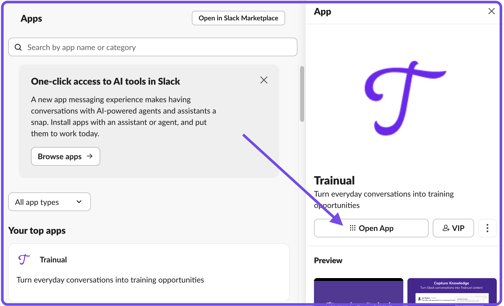
- Open Slack and navigate to the "Apps" section in your workspace.
- Click the three dots and choose "Browse apps" from the menu.
- Search for Trainual and open the Trainual search result.
- Hit "Open App" from the left-hand app panel.
- Click the "Connect Trainual" button.
- Sign in to Trainual and allow the connection.
📝 Please note: You may need to exit and reload Slack for the connection to apply.
Once you're connected, you can ask the Trainual assistant questions, get notifications, and reply to comments right in Slack. Keep reading to see these tools in action. 📖
Ask the Trainual assistant in Slack:
The Trainual assistant in Slack is the same AI assistant you already use in Trainual, available right where your team chats day to day, for private and channel answers.
-
Everyone has automatic access to their own personal AI assistant when AI account settings are enabled, but the results in those chats will respect...
-
Set user permissions.
-
Content access levels.
- Content discoverability settings.
-
- The assistant also searches sources you've connected, like Google Drive.
📝 Please note: Access to the AI assistant in Trainual requires a paid Slack plan.
-
Open the Trainual app in Slack, or click Trainual in Slack's agent view at the top of Slack.
-
Type your question and send it. The response will stream in with links to the resources it used to answer your inquiry.
-
Add Trainual to the channel if it isn't there yet.
-
@mention Trainual with your question, like "@Trainual what's our PTO policy?"
-
Trainual replies in a thread, so the channel stays tidy.
🔥 Tip: Ready to stop repeating yourself? Get your team to ask Trainual first. They'll get more self-sufficient, and your content will start doing the coaching for you.
🔹 Have them try asking questions like:
-
"What's our refund policy?"
-
"What's due this week?"
- "How is our Q4 revenue goal tracking?"
Create and capture knowledge in Slack:
Need to capture an idea or info quickly? You can start a subject, document, or page outline from Slack using the shortcuts mentioned here.
- Content creation is available as part of the Training suite.
- The user's ability to create content will depend on the permission level you've set for them inside Trainual. For more specifics, review their permissions and content access.
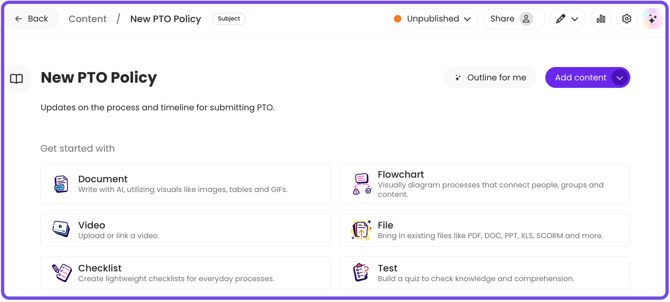
- Open any Slack channel or Slack DM.
- Click the "Run shortcut" icon from the message composer.
- Type Trainual and select one of the following three Trainual shortcuts:
- Enter your content details in the pop-up window and hit "Add."
🔥 Tip: For the best experience, create content directly in Trainual so you can ask the AI assistant to draft the whole thing for you, not just the outline, then review and publish it.
Staying informed and taking action in Slack:
Trainual DMs you when something needs your attention anywhere in Trainual, so you can respond without having to leave Slack.
Open the Trainual app in Slack and go to the "Messages" tab.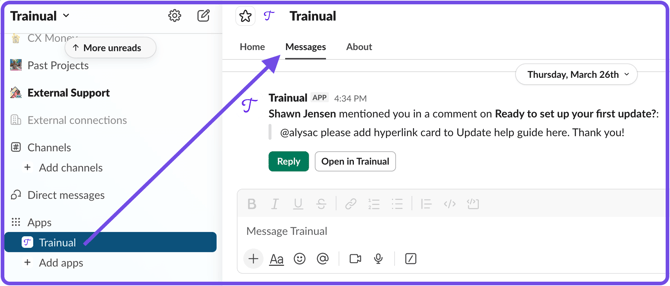
Once your user profile is connected, Trainual will start sending notifications in real time for these events.
| ✉️ Notification type | ⏰ When it's sent |
| Assignments and ownership | Content is assigned to you, you're assigned a new update, you're added to a meeting, or a goal, meeting, update, or scorecard is transferred to you. |
| Due dates and reminders | You have incomplete training, an update is due today or past due, or an action item is due today. |
| Comments and @mentions | Someone comments, replies, or @mentions you on content, goals, updates, meetings, or scorecards you're involved with. |
| Changes and progress | Content you have access to is updated, a goal's status changes or it's completed, a meeting changes, or a meeting summary is ready. |
| Feedback and reviews | Someone submits or resolves feedback on content you own, or content is waiting for your review. |
📝 Please note: Each notification links back to the right place in Trainual so users can take action immediately.
| 👍 Reply and react from Slack: |
-
Reply to any comment notification, and your reply posts to the right comment thread in Trainual. This works across Trainual.
-
React with an emoji, and your reaction shows up on the comment in Trainual.
📝 Please note: Replies sent from Slack show a "sent via Slack" badge in Trainual.
-
Choose which notifications you get. Manage your preferences from Trainual's notification controls.
-
Mute notifications. Open the Trainual app in Slack and hit the bell icon to pause sounds and pop-ups.

AI, privacy, and your data:
Here’s what you need to know about how the Trainual assistant uses AI and your data.
| 📑 AI topic: | 📋 Details: |
| AI accuracy | The Trainual assistant uses AI to generate answers, which can sometimes be inaccurate or incomplete. Check important details against the linked sources provided. |
| Your Trainual permissions apply | Every question runs under the asking person's own Trainual permissions. The assistant only uses content that the person can already see. |
| Slack context | The assistant only reads a Slack thread when someone asks it a question in that thread. |
| No training on your data | Your Trainual and Slack data isn't used to train AI models. |
| AI provider | Answers are generated using OpenAI models through the OpenAI API. |
| Retention | OpenAI may keep request data for up to 30 days for abuse monitoring, then it's deleted. AI conversation history stays in Trainual so you can view past conversations. |
| 📜 For more info, see Trainual's privacy policy. ↗ |
FAQs:
Are user specific Slack notifications on by default?
No — a Trainual Admin must enable the Slack integration from your company account first. Each user then connects their own Trainual profiles to start receiving notifications.
Can Slack guests use the Trainual assistant?
No. Slack doesn't allow guests to use AI apps.
How does the Trainual assistant pull its answers, and how can I confirm those details?
The Trainual assistant uses AI to generate answers, which can sometimes be inaccurate or incomplete. Check important details against the linked sources provided.
How do I create content with the Trainual assistant, and can I do it from Slack?
The best place to create content is inside Trainual, where the AI assistant can build out a full subject, document, or page for you. The Trainual assistant in Slack can answer questions, but it doesn't create content.
Why aren’t /trainual search and /trainual ask working, and what do I use instead?
Those Slack commands have been retired. The Trainual assistant replaces both, so to search and ask, just message or @mention the Trainual app instead.
Need assistance with your Slack + Trainual integration?
Contact our support team at support@trainual.com.
How can I submit my feedback and ideas about features?
If you'd like to share your thoughts about the Trainual + Slack integration or think of something else you'd like to tell us, send us your feature requests and ideas.
Learn more about integrations:
- Secure team logins and make them more convenient by adding SSO.
- Connect your Trainual account to thousands of other apps with Zapier.
- Connect your current HRIS or payroll system to Trainual for easy onboarding.