![Trainual Logo (White).png]](https://help.trainual.com/hs-fs/hubfs/Logo/Trainual%20Logo%20(White).png?height=39&name=Trainual%20Logo%20(White).png)
Skip the one-by-one changes. Hand off ownership, publish, recategorize, and more in a single move with bulk content actions. That’s materials management made easy. 😌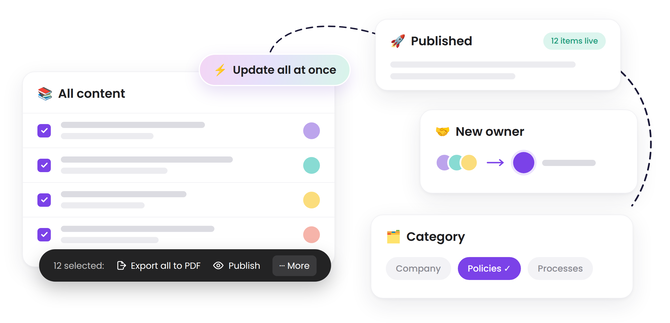

- Bulk content actions are available as part of the Training suite. Contact our support team for any subscription help. 🤗
- Bulk actions on the content page are only available to Admin+ permissions.
- The information below is best suited for content creators. For more specifics around which areas of the account and pieces of content your employees can access, review their permissions and subject content access.
🗂️ Table of contents: Skip around to just the parts you need with these links.
Overview
Clicking into every piece of content to make the same change? We love the dedication, but you deserve something easier. 😅 Bulk content actions help you handle your whole content library in big sweeps, so you can get on to the next thing faster.
💨 Here's how it makes documentation management a breeze:
- 🚀 Launch training materials all at once. Publish batches of content altogether.
- 🧹 Keep your library organized. Put away outdated content by archiving it and move things around to the best categories as your inventory grows.
- 👋 Handle role changes without a hitch. Got a teammate moving on? Transfer every piece of content they own to someone else in one go.
- 📄 Take it offline. Export several pieces of content to PDFs in a single batch.
That's fewer tasks, a happier content team, and a training library that stays top-notch!

Access bulk content actions:
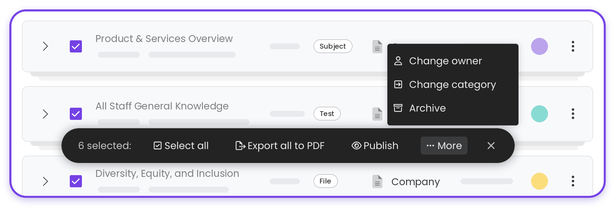
Everything starts with your selections. Pick the content you want to update, and every bulk action becomes available, right at your fingertips. 👇
-
Expand "Content" from the left-hand navigation menu.
-
Select "All content."
-
Check the box next to each piece of content that you want to take action on.
-
Look for the action bar at the bottom of your screen and decide which action you'd like to take on your content: export all to PDF, publish, change owner, change category, or archive.
🔥 Tips:
-
☑️ To select everything on your current content page (up to 50 items), click "Select all" in the action bar.
-
❌ To clear your selections, click the "x" at the far right side of the action bar.
|
💭 Strategy corner: Try pairing content filters with bulk content actions to turn big updates into a quick, repeatable routine that you can keep up month over month.
|
Bulk export content to PDFs:
Download multiple pieces of content at once to share offline, print, or keep records of.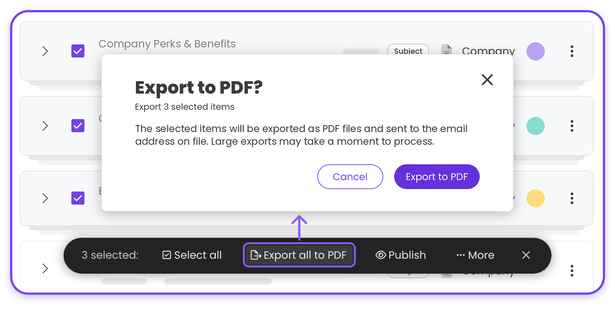
-
Expand "Content" from the left-hand navigation menu.
-
Select "All content."
-
Check the box next to each piece of content that you want to export.
-
Click “Export all to PDF” in the action bar.
-
Hit the “Export to PDF” button in the pop-up to confirm. Your selected content is sent to your email address from "no-reply@trainual.com" as attached PDF files.
📝 Please note: Large exports may take a bit longer to process. Don't see the email? Check your spam folder first, then try these troubleshooting steps.
📚 For a full walkthrough on this feature, see "Export and Print Content PDFs." ↗
Bulk publish content:
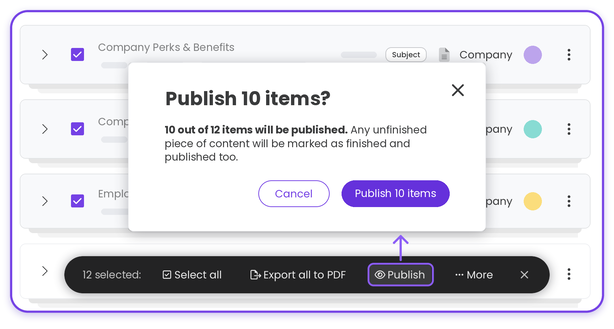
Ready for your team to see it? Take a whole set of content live in one go — perfect for rolling out your new or updated training all at once.
-
Expand "Content" from the left-hand navigation menu.
-
Select "All content."
-
Check the box next to each piece of content that you want to publish.
-
Click “Publish” in the action bar.
-
Hit the “Publish (#) item” button in the pop-up to confirm. Any unpublished content you've selected automatically is marked as finished and published.
📝 Please note: Trainual only publishes the items that aren’t set live yet. Anything you’ve selected that’s already published will be skipped.
📚 For a full walkthrough on this feature, see "Content Statuses." ↗
Bulk change content owners:
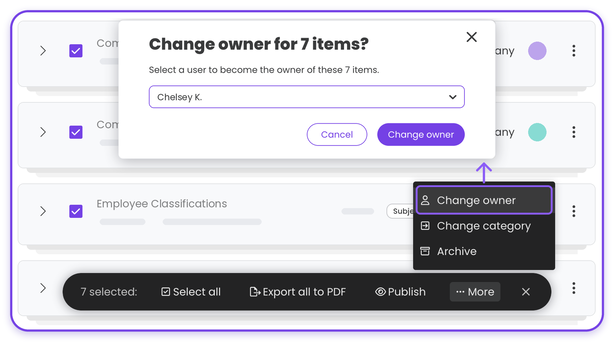
Pass the torch on multiple pieces of content — perfect for when a teammate switches roles, or a new subject matter expert takes over SOPs.
-
Expand "Content" from the left-hand navigation menu.
-
Select "All content."
-
Check the box next to each piece of content that you want to update.
-
Click “Change owner” in the action bar.
-
Choose the new owner from the drop-down menu.
-
Hit the “Change owner” button in the pop-up to confirm. The chosen user will automatically become the new owner of all the selected content.
📝Please note: Content owners have full administrative access over the content they own, no matter their current permission level in Trainual.
📚 For a full walkthrough on this feature, see "Content Owners." ↗
Bulk change content categories:
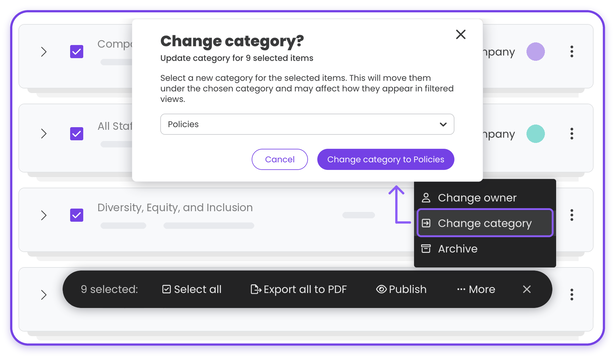
Move several pieces of content around into the best "buckets" with a single update.
-
Expand "Content" from the left-hand navigation menu.
-
Select "All content."
-
Check the box next to each piece of content that you want to update.
-
Click “Change category” in the action bar.
-
Choose the new category from the drop-down menu.
-
Hit the “Change” button in the pop-up to confirm. This automatically moves them under the chosen category.
📝 Please note: Content moves to its new category right away, so when you go to filter your content next, it will appear in its new spot.
📚 For a full walkthrough on this feature, see "Company, Policies, & Processes." ↗
Bulk archive content:
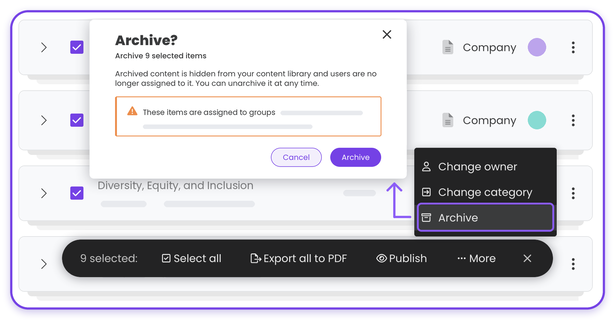
Keep your library focused on what matters most, and tuck away older content you might want to reference or bring back later by archiving it.
-
Expand "Content" from the left-hand navigation menu.
-
Select "All content."
-
Check the box next to each piece of content that you want to archive.
-
Click “Archive” in the action bar.
-
Review any notes or warnings about your selections before continuing.
-
Hit the “Archive” button in the pop-up to confirm. This automatically hides your content and removes any user assignments. You can unarchive it at any time.
📝 Please note: If any items you've selected are assigned to groups, Trainual lists them before you confirm as a heads-up, since archiving removes group assignments too.
📚 For a full walkthrough on this feature, see "Archive & Unarchive Content." ↗
FAQs:
Is it possible to accidentally apply the same bulk content action twice?
No. Bulk content actions in Trainual only apply to content that needs the change. Any content already set the way you want is automatically skipped, so nothing gets published twice or updated again, for example. That’s why the number shown in confirmation pop-ups can appear smaller than the number of items you've selected from your content page.
How can I submit my feedback and ideas about features?
If you'd like to share your thoughts about bulk content actions or think of something else you'd like to see added in the future, send us your feature requests and ideas.
Learn more about managing Training content:
- Set one training order to keep learning consistent for your whole team.
- Turn your learners into proofreaders who can flag outdated content for you.
- Import your existing content and let AI sort it into a Trainual-ready structure.