![Trainual Logo (White).png]](https://help.trainual.com/hs-fs/hubfs/Logo/Trainual%20Logo%20(White).png?height=39&name=Trainual%20Logo%20(White).png)

A review cycle is only as good as the questions behind it. Ask the wrong ones, and you'll get vague, surface-level input. Ask the right ones, and you'll get real, meaningful takeaways — the kind that actually help people professionally grow. 🌱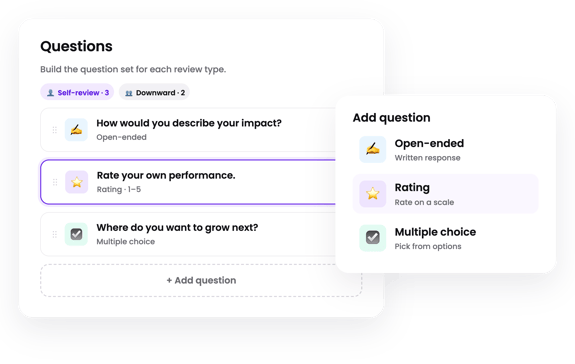
👉 Before you start:
- The reviews feature is available as part of the Performance suite. Contact our support team for any subscription help. 🤗
- Building cycle questions is limited to review creators: Admins and direct managers within their own reporting chains.
🗂️ Table of contents: Skip around to just the parts you need with these links.
Overview:
🧰 Here's what you're working with. ↓
| Question type: | Description: | Examples: |
| ✍️ Open-ended | A written response question that lets reviewers slow down and explain the context behind their input. |
|
| 🔢 Rating | A scored question, on a scale you build, is ideal for measuring a skill or behavior consistently across reviewers. |
|
| 🔘 Multiple choice | A set of defined answer choices to a question. Single-select when only one applies and multi-select when more than one does. |
|
Three question types, endless ways to put them to work. First up: open-ended. 👇
Build open-ended review questions:
Need reviewers to explain their rationale? Build an open-ended question.
🔹 Step 1 → Add an open-ended question type to the review cycle.
-
Find the review type you're building for, "Self-review" or "Downward review," from the "Questions" step of your review cycle setup.
-
Click "Open-ended" under "Add question" on the right.
-
Enter the desired prompt in the textbox field.
-
(Optional) Add any relevant subtext or instructions if you want to give the reviewers extra context.
🔹 Step 2 → Fine-tune the details.
-
Format it. Use the text editor to add bullet points, emojis, links, and more.
-
Make it optional. Check the "Optional" box if a response shouldn't be required.
-
Reuse it. Hit "Copy to" to duplicate this question into the other review type instead of writing it out twice.
-
Reorder it. Drag the card using the dotted grip icon to move it within the set.
Build rating review questions:
Want quick, comparable scores you can track cycle to cycle? Build a rating question.
🔹 Step 1 → Add a rating question type to the review cycle.
-
Find the review type you're building for, "Self-review" or "Downward review," from the "Questions" step of your review cycle setup.
-
Click "Rating" under "Add question" on the right.
-
Enter the desired prompt in the textbox field.
-
(Optional) Add any relevant subtext or instructions if you want to give the reviewers extra context.
🔹 Step 2 → Set the rating style.
Pick a rating style: "Scale" for a numbered range answer with scale labels or "Yes / No" for a straightforward answer.
👍👎 If you chose "Yes / No," you're done here — move on to step 3.
⚖️ If you chose "Scale":
-
Choose your scale size under the "Number range" section (between 2 to 10). This is how many numbered options reviewers will see and choose from.
-
Add labels for at least the lowest and highest points on your scale (for example, "Needs improvement" and "Exceeds expectations"). Labels for the points in between are optional.
📝 Please note: You can use the "Swap ends" button at any time if you want to flip which end of the scale is the best and which is the worst.
🔹 Step 3 → Fine-tune the details.
-
Preview it. Use the "Preview" button to see it from the respondents' point of view.
-
Format it. Use the text editor to add bullet points, emojis, links, and more.
-
Make it optional. Check the "Optional" box if a response shouldn't be required.
-
Reuse it. Hit "Copy to" to duplicate this question into the other review type instead of writing it out twice.
-
Reorder it. Drag the card using the dotted grip icon to move it within the set.
Build multiple-choice review questions:
Looking to set the choices reviewers get to pick from? Build a multiple-choice question.
🔹 Step 1 → Add a multiple-choice question type to the review cycle.
-
Find the review type you're building for, "Self-review" or "Downward review," from the "Questions" step of your review cycle setup.
-
Click "Multiple choice" under "Add question" on the right.
-
Enter the desired prompt in the textbox field.
-
(Optional) Add any relevant subtext or instructions if you want to give the reviewers extra context.
🔹 Step 2 → Set up your choices.
-
Choose a "Selection mode."
-
"Single select" lets respondents pick just one option.
-
"Multi-select" lets them pick more than one.
-
-
Fill out your first two answer choices, then hit "+ Add option" to include as many additional answer choices as needed.
📝 Please note: Hit the "x" next to any answer choice to remove it.
🔹 Step 3 → Fine-tune the details.
-
Format it. Use the text editor to add bullet points, emojis, links, and more.
-
Make it optional. Check the "Optional" box if a response shouldn't be required.
-
Reuse it. Hit "Copy to" to duplicate this question into the other review type instead of writing it out twice.
-
Reorder it. Drag the card using the dotted grip icon to move it within the set.
FAQs:
Why can't I launch my review cycle?
If "Launch cycle" looks grayed out, check your "Questions" section. Both review types (self and downward) need at least one question added before you can launch a cycle.
Why would I want to mark a review question as optional?
It's helpful for niche or situational questions, like ones tied to a specific project or goal, or ones about company-level feedback that won't be relevant to every reviewer or that every reviewer might not feel comfortable answering.
Can I add more than one question of the same type to the same review?
Yes — there's no limit on how many questions you can add to either review type.
Do self-review and downward review need the same questions?
No, but you can use "Copy to" if you'd like a question to appear in both review types.
How can I submit my feedback and ideas about features?
If you'd like to share your thoughts about the Performance suite or think of something else you'd like to see added in the future, send us your feature requests and ideas.
Learn more about Trainual:
- Add-on the training suite, capturing exactly who does what — and how.
- Take control of team plans and follow-throughs with the operations suite.
- Become a Trainual pro and stay up to date on new features with Trainual U.