![Trainual Logo (White).png]](https://help.trainual.com/hs-fs/hubfs/Logo/Trainual%20Logo%20(White).png?height=39&name=Trainual%20Logo%20(White).png)

When your people level up, so does everything else! Ongoing performance tracking means better reviews, better coaching, and a business that keeps pace with its team.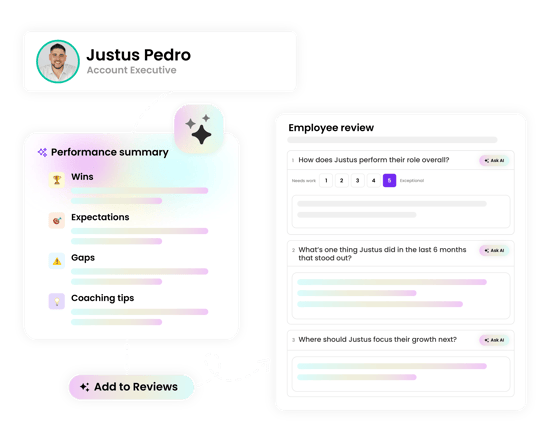
👉 Before you start:
-
The reviews feature is available as part of the Performance suite. Contact our support team for any subscription help. 🤗
-
Review access and capabilities depend on your permission level and your specific involvement on a cycle.
- Billing Admins can manage and see every cycle.
- Admins can create and own cycles, but can't access others' cycles.
- Managers can create cycles for people in their reporting chain and manage cycles owned by people in their reporting chain. Visibility into other cycles is limited to ones involving people they manage or ones they are otherwise part of.
- Reviewees can see their own self-review and shared review summaries, but not a reviewer’s raw responses.
- All participation requires active user seats under the Performance suite.
🗂️ Table of contents: Skip around to just the parts you need with these links.
Overview:
At their best, performance reviews open up real conversations, not just paperwork. Trainual reviews give your team a clear, repeatable way to move things forward, gather reflection and input, and share thoughtful outcomes with each employee.
🧩 Here's how Trainual reviews make that possible:
-
🗄️ Keeps the process organized. Set up the cycle, assign reviewers, and track progress in one place. No need for other email threads or separate forms.
-
🖼️ Captures a full picture. Participants reflect on their own work, and reviewers add their perspectives, each using question sets designed for both review types.
-
📁 Ends with clear takeaways. Reviewers combine everything into one focused summary, complete with growth areas, for the participant's final review packet.
Everyone arrives to the conversation better prepared, and the people running the process stay confident that nothing will get lost along the way! 😎

Review cycle terminology:
New to reviews? These are the terms worth knowing before you set up your first cycle.
| Review term: | Review term definition: |
| 👤 Self-review | A reflection an individual wrote about their own performance, covering the cycle's specified time period. |
| ✏️ Downward review | A review of an individual's performance, completed by their assigned reviewer, covering the same time period as the cycle. |
| 📄 Summary | The condensed version of feedback the reviewee actually sees — written by the reviewer to summarize everything clearly. |
| 🌱 Growth area | A specific skill or behavior a reviewer flags as something the reviewee should work on going forward. |
Add a review cycle:
Create review cycles that fit how your team actually evaluates performance. Set a timeline, choose who's involved, and define how performance is gauged.
🔹 Step 1 → To begin, you'll need to set up some review basics.
-
Expand "Performance" from the left-hand navigation menu.
-
Select "Reviews."
-
Hit the "New review" button.
-
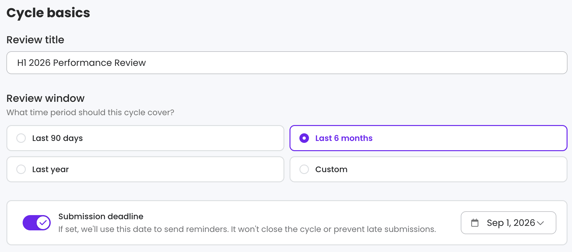
Fill out the cycle basics.
-
Title. Make it specific. Vague titles lead to vague reviews — name this cycle so it's obvious what's being assessed.
-
Window. Set the time period reviewers and participants should focus on for this review (this is not when the cycle itself opens or closes).
-
Last 90 days.
-
Last 6 months.
-
Last year.
-
Custom range.
-
-
Deadline. Toggle on the "Submission deadline" setting if you want participants to submit their reviews by a specific date. Note that a submission deadline drives reminders; it does not automatically close the cycle out or prevent late submissions.
-
🔹 Step 2 → Select the people to be reviewed in this cycle.
-
Hit the "+ Manage participants" button in the upper right-hand corner.
-
Use the search bar to include individual users and groups.
-
Click "Done."
🔹 Step 3 → Assign a reviewer for each participant.
Before continuing, each participant needs an assigned reviewer. Trainual will automatically assign each participant’s manager as their reviewer when a manager is on file. Review the assignments in the participants' table before continuing.
-
Manager on file? Their manager is automatically assigned as the reviewer, but you can select a different reviewer for this cycle if needed.

-
No manager on file? A "No manager — resolve" button appears.
-
Click it, then choose:
-
Assign manager (recommended). Sets their manager in Trainual and adds that person as the reviewer for this and future cycles.
-
Pick a reviewer for this cycle only. Assign someone as the reviewer just this once; no manager will be saved on file.
-
-
- Top-level participant? A person at the top of the org chart cannot have a manager on file. If they should be included in the cycle, select "No reviewer — pick one" and choose a temporary reviewer for this cycle.
- Hit the "Next" button to proceed.
📝 Please note: You can hit the "x" next to someone's name to remove them.
🔹 Step 4 → Assemble the review cycle questions.
Build a question set for each review type — self-review and downward.
-
Choose from the three question types:
-
Open-ended. Give participants or reviewers space to answer your custom prompt in their own words.
-
Rating. Create a prompt and decide whether the participant or reviewer should use a fixed numeric scale (2–10 points) or a Yes/No answer.
-
Multiple choice. Add a prompt and offer defined choices — single-select to collect one answer, multi-select to collect more than one.
-
🔥 Tips:
|
📚 For a full questions walkthrough, see "Reviews: Building Questions." ↗
🔹 Step 5 → Review and launch this review cycle.
This is your last chance to double-check that everything's in order before reviewers get notified. Take a moment to confirm that the cycle details, participants, and questions are correct — each section has its own "Edit" link if something needs to be modified. 🖋️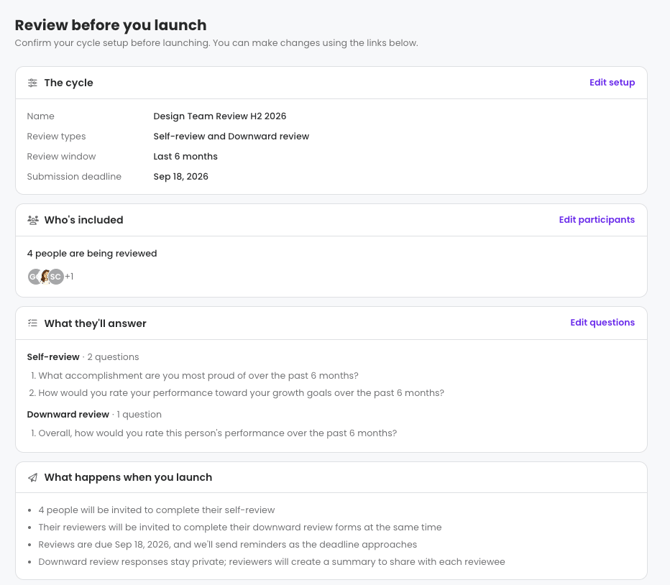
Once it all has your seal of approval, hit the "Launch cycle" button to set it live. You'll be redirected to a cycle progress table to track everything.
Edit an open review cycle:
Already launched a cycle, but need to make a quick change? These specific details stay editable even after a cycle is active. 👇
-
Expand "Performance" from the left-hand navigation menu.
-
Select "Reviews."
-
Click the "Cycle details" button.
-
Edit or adjust any of these parts of your cycle:
-
Review title.
-
Due date.
-
Add new participants.
-
Remove existing participants.
-
Note that this will delete all related submitted review materials for that person for that cycle.
-
-
Transfer cycle ownership.
-
Note that cycle ownership can be transferred by Billing Admins on any cycle, the current owner for their own cycle, or anyone above the owner in the reporting chain. The new owner must be an Admin or a manager whose reporting chain includes every participant in that current cycle.
-
-
Fill out a review:
Every review you owe — self or downward — is accessible inside an organized space.
-
Expand "Performance" from the left-hand navigation menu.
-
Select "Reviews."
-
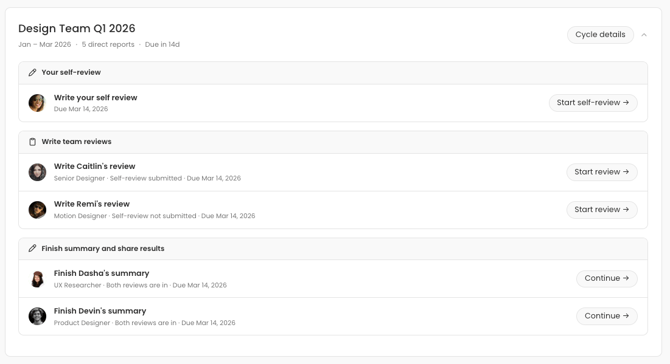
Find the review cycle with work assigned to you under "Active." The card shows what needs your attention.
-
Start on an assigned task.
-
Self-review: Click “Start self-review” or “Continue review” to reflect on your own performance.
-
Downward review: Click “Start review” or “Continue review” under “Write team reviews” to begin reviewing a teammate.
-
Summary: Click “Continue” under “Finish summary” to prepare the final review summary for the participant.
-
-
Fill out the questions you've been assigned to answer under these tasks.
-
Push the "Submit responses" button to officially send in your responses.
- (For assigned reviewers) Complete the review summary and select "Share summary" when it is ready to ship.
- Note that the shared summary is how the participant receives their review packet (downward-review responses remain private).
- Repeat steps 4 thru 7 until all review tasks have been completed.
🔥 Tip: Drafting your review summary doesn't have to wait on anyone. You can start on it whenever you're ready, we just suggest holding off on sharing it until both reviews are complete, so you have the full cycle picture. 📸
📚 For a full cycle walkthrough, see "Reviews: Completing a Cycle." ↗
Filter the view of your review cycles:
Use the toggle at the top of your reviews page to switch between your cycle states.
| Cycle filter: | Cycle filter overview: |
| 🟡 Active | This view shows reviews that are still open, along with the cycle details like enrollment counts, due dates, and live progress across self-reviews, downward reviews, and delivery status. |
| 🟢 Completed | This view shows reviews that have wrapped up, so you can look back on past cycles whenever needed. |
Delete a review cycle:
Deleting a cycle is limited to Billing Admins, the review cycle owner, and anyone above the review cycle owner in the reporting chain.
-
Expand "Performance" from the left-hand navigation menu.
-
Select "Reviews."
-
Click the three dots (⋮) next to the review's title.
-
Choose "Delete cycle" from the drop-down menu.
-
Hit the "Delete cycle" button from the pop-up window to finalize.
📝 Please note: This action is permanent and cannot be undone or reversed.
Additional resources about reviews:
Take your reviews into the stratosphere with these other great learning resources.
- 👨🏫 Live learning sessions: "Performance Party" webinar.
- ⚡ Quick start guide: Performance Suite.
- ♟️ Strategy guide: How to Build a Performance Culture.
FAQs:
Does Trainual offer AI tools to create or complete a review cycle?
Our AI Assistant can access the Performance suite features and info you have access to, but further AI and smart-assist tools are in the works on our roadmap. Stay tuned! 🛣️
Can managers see the whole review cycle?
Access is limited by reporting relationships, not a whole review cycle. For example, a director managing 3 people in a company-wide cycle only sees those 3 people and their review info, not other employees' participation or content on a cycle. So if this occurs, know that it's expected behavior, not any missing permission access.
How can I submit my feedback and ideas about features?
If you'd like to share your thoughts about the Performance suite or think of something else you'd like to see added in the future, send us your feature requests and ideas.
Learn more about Trainual:
- Add-on the training suite, capturing exactly who does what — and how.
- Take control of team plans and follow-throughs with the operations suite.
- Become a Trainual pro and stay up to date on new features with Trainual U.