![Trainual Logo (White).png]](https://help.trainual.com/hs-fs/hubfs/Logo/Trainual%20Logo%20(White).png?height=39&name=Trainual%20Logo%20(White).png)
This is where review cycles actually play out — reflecting on self-performance, weighing in on someone else's, and shaping it all into one neat summary and growth plan.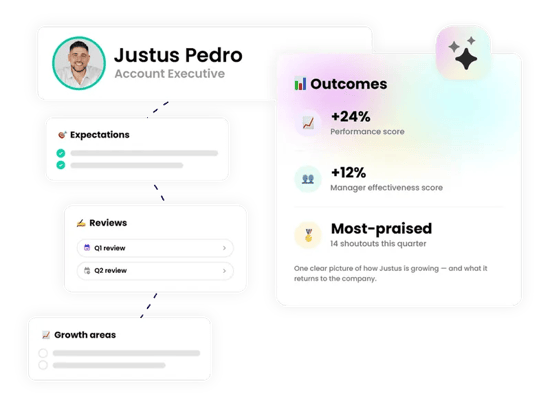
👉 Before you start:
- The reviews feature is available as part of the Performance suite. Contact our support team for any subscription help. 🤗
- Any permission level with an active user seat in your Performance suite can participate in a review cycle, either as an owner, reviewee, or reviewer.
🗂️ Table of contents: Skip around to just the parts you need with these links.
Overview:
🔄 Here's how a review cycle moves from one end to the other. ↓
- 📤 Everyone gets notified. The moment a cycle launches, every participant gets an email and an in-app alert, so your people always know when it's review time.
- 💭 Participants reflect, review, and grow, all in Trainual. Everything stays together — self-reviews, downward reviews, summaries, and growth areas — so what happened and what comes next never feel disconnected.
- 📬 Results land with included next steps. When a cycle is closed, participants receive an all-in-one packet with how they did and what to act on next.
Notifications, reflections, and results — that's the shape of a full cycle. Let's put that flow into practice so you and your team can take one step closer to some big career wins.

Review cycle notifications:
[Coming Soon 🏗️]
Complete your self-review:
This is the part of the cycle where you're the only voice in the room. Make it count by backing up your work with real metrics, specific examples, and honest reflection.
🔹 Step 1 → To begin, open your self-review.
-
Expand "Performance" from the left-hand navigation menu.
-
Select "Reviews."
-
Click the "Start self-review" button under the cycle you need to complete.
🔹 Step 2 → Answer the questions.
-
Respond to each question in the review.
You can use the text editor to format your answer using bullet points, bold text, links, and more to help emphasize your point. -
Check the reference panel on the right for extra context as you write.
You'll see any feedback you've received, your current growth areas, and any private notes you've saved about your own performance within this cycle range.-
Need info from further back? Hit the "This cycle" dropdown to filter by "Past 6 months," "Past 12 months," "All time," or a custom date range.
-
🔥 Tip: You don't have to finish this all in one sitting. Your answers auto-save, and you can exit at any time, then pick up where you left off by hitting "Continue review" when you're ready. Take your time and be thorough!
🔹 Step 3 → Submit your responses.
Hit the "Submit responses" button. A confirmation window will ask if you're ready: hit "Submit responses" again to lock in your answers, or "Keep editing" to go back.
📝 Please note: Once submitted, your answers lock in and can't be edited. Make sure you're happy and confident with your responses before confirming.
Complete a downward review:
As a reviewer, you're adding the other half of the story. Do your due diligence by using all the context you have on this person's performance this cycle period to back it up.
🔹 Step 1 → To begin, open a downward review.
-
Expand "Performance" from the left-hand navigation menu.
-
Select "Reviews."
-
Click the "Start review" button under the cycle you need to complete.
🔹 Step 2 → Answer the questions.
-
Respond to each question in the review.
You can use the text editor to format your answer using bullet points, bold text, links, and more to help emphasize your point. -
Check the reference panel on the right for extra context as you write.
You'll see the person's self-review (if it's been submitted), feedback they've received, their current growth areas and goals, and any private notes you've saved about their performance within this cycle range.
🔥 Tip: You don't have to finish this all in one sitting. Your answers auto-save, and you can exit at any time, then pick up where you left off by hitting "Continue review" when you're ready. Take your time and be thorough!
🔹 Step 3 → Submit your responses.
Hit the "Submit responses" button. A confirmation window will ask if you're ready: hit "Submit responses" again to lock in your answers, or "Keep editing" to go back.
📝 Please note: Once submitted, your answers lock in and can't be edited. Make sure you're happy and confident with your responses before confirming.
Write review summaries and growth areas:
As the reviewer, this is where two perspectives become one clear takeaway. Summarize the self and downward reviews, then set growth areas for the next cycle.
🔹 Step 1 → To begin, open a pending summary.
-
Expand "Performance" from the left-hand navigation menu.
-
Select "Reviews."
-
Click the "Cycle details" button next to the cycle you need to complete.
-
Hit "Write summary" in the "Summary" column of the participant.
🔹 Step 2 → Write their summary.
Fill in the "Review summary" field. This is the high-level overview of their performance this cycle, delivered to them along with their complete cycle packet. You've got up to 2,000 characters, so be sure to keep it honed in and focused on what matters most.
🔥 Tip: You can toggle between your answers and the other person's self-review answers in the panel on the right to cross-compare reviews as you write.
🔹 Step 3 → Manage their growth areas.
-
Review any growth areas this person already has in the "Growth areas" section.
-
You can open the "All" filter drop-down to resort to another status: draft, active, complete, or archived.
-
-
Update or adjust any current growth areas.
-
Hit the "⋮" menu next to a growth area to update its status.
-
-
Add any new growth areas.
-
Hit "+ Add growth area."
-
Enter a title (required) and a description (optional).
-
Set a status (draft, active, or complete) and a target date (optional).
-
Click the "Create growth area" button to apply it.
-
📝 Please note: New growth areas won't appear on someone's profile until you share their summary. So don't worry! No one will be caught off guard. 😮💨
🔹 Step 4 → Fine-tune the details.
-
Hit "Continue" to move to the share results screen, where you can...
-
Add a personal touch by hitting "Add a note" to show up in the email and in-app notification the recipient gets.
-
Preview what the person will see on their end by hitting "Preview what [Name] sees" to make sure everything looks in order before it goes out.
-
Exit out using the "x" in the upper right-hand corner. Everything you've built up until now stays saved as a draft.
-
🔹 Step 5 → Share and close out someone's review cycle.
Ready to go? Hit the "Share results with [Name]" button. This sends an email and an in-app notification to that participant. Packets will stay available in their user profile.
Access your review packet:
Once your results are shared, you'll be notified via email and an in-app alert. You can view your packet by clicking your avatar initials in the top navigation bar, then your name. Reviews are under the "Performance" tab. Hit "View results" to open the results.
Want to save or share a copy? Hit "Download PDF" at the top of the page.
🔥 Tip: Check back on your growth areas throughout your next cycle, not just when review time rolls back around. It's an easy way to track your progress along the way.
FAQs:
Do self-reviews have to be completed before downward reviews?
No. Self-reviews and downward reviews can happen in any order. Your reviewer can complete your downward review even if you haven't submitted your self-review yet.
Will I see my manager's full, original downward review and answers about me?
No. You'll only see the summary your reviewer chooses to share with you, not their individual review responses.
How can I submit my feedback and ideas about features?
If you'd like to share your thoughts about the Performance suite or think of something else you'd like to see added in the future, send us your feature requests and ideas.
Learn more about Trainual:
- Add-on the training suite, capturing exactly who does what — and how.
- Take control of team plans and follow-throughs with the operations suite.
- Become a Trainual pro and stay up to date on new features with Trainual U.