![Trainual Logo (White).png]](https://help.trainual.com/hs-fs/hubfs/Logo/Trainual%20Logo%20(White).png?height=39&name=Trainual%20Logo%20(White).png)
Make sure your training actually sticks with well-crafted assessments, built in minutes. Just point the Trainual AI assistant in the right direction, and let it put it all together.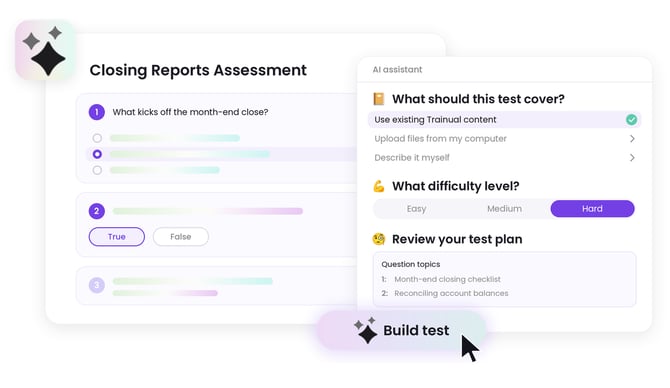

- The test feature is available as part of the Training suite. Contact our support team for any subscription help.
- AI-powered features must be enabled to generate tests this way.
- The information below is best suited for content creators. For more specifics around which areas of the account and pieces of content your employees can access, review their permissions and content access.
🗂️ Table of contents: Skip around to just the parts you need with these links.
Overview:
😎 Here’s how AI-powered test creation makes things easy:
-
📚 Pull directly from your sources. Build questions from your existing Trainual content, a file from your device, or a topic you can outline in your own words.
-
🧗♀️ Set the challenge level. Go from quick recall to in-depth scenarios with easy, medium, or hard difficulty questions built on proven teaching frameworks.
-
📏 Size it and style it your way. Keep it short and sweet or go up to 25 questions, then choose your mix of question types or let Trainual pick the best grouping.
-
👀 Preview it before it’s applied. Stay in control with the sneak peek at what your test will cover, so you can make revisions before anything is applied.
No guesswork and no settling for a one-size-fits-all quiz. Just a breathed sigh of relief.
Create an AI-built test:
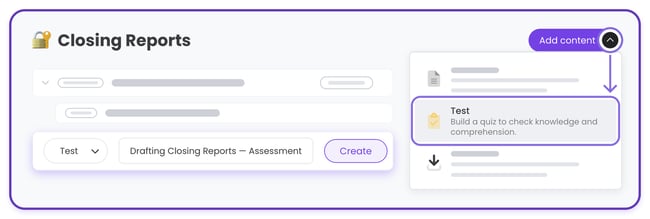
Kick things off by opening a fresh test, and the AI assistant will be waiting to help.
-
Open the subject you'd like to add a test to (or create it as a standalone test).
-
Click the arrow on the "Add content" button.
-
Select "Test" from the drop-down menu.
-
Name your test using the textbox.
-
Hit the "Create" button.
🔥 Tip: You can also open the AI assistant from anywhere in Trainual (just look for the ✨ icon in the top navigation bar). Type something like "Build me a 10-question medium-difficulty test on [subject name]" and the assistant will guide you from there!
|
💭 Strategy corner: Great tests start with knowing what “job-ready” looks like. Use these three steps to plan your test and guide the AI assistant, based on the same frameworks Trainual AI uses behind the scenes.
|
Tell the assistant what to cover on the test:
Every test starts with two choices: what type of content to cover and where to pull it.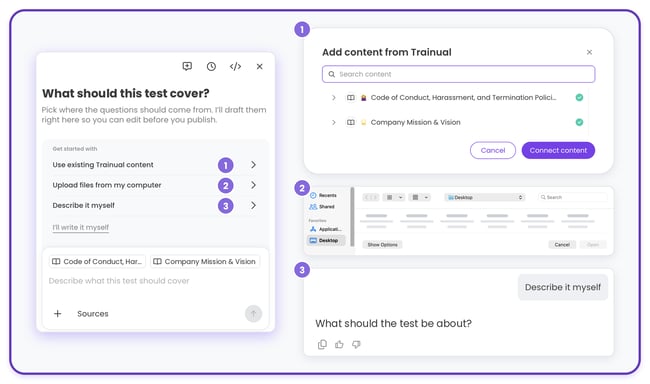
Pick where the questions for this test should come from. The AI assistant will draft them inside the slide-out panel so you can edit everything before you publish.
| 🗃️ Source option: | 👍 Best for: |
| Use existing Trainual content | Confirming your team understands the processes and policies you’ve already documented, using the content you’ve already built. Every question is pulled from your own subjects, documents, or pages, so nothing gets tested that your team hasn’t been assigned to or provided. |
| Upload files from my computer | Bringing offline training into the mix. The files on your computer can become the starting point for a ready-to-review test, with questions built from PDFs, Excel sheets, slide decks, and more. |
| Describe it myself | Spinning up a fast training pulse check when you need one. Type out what to evaluate your team on, and the questions are written for you. This option works great for topics like customer service scenarios or gray-area decisions. |
Hand the AI assistant the building blocks to create the test.
| If you chose "Use existing Trainual content" | If you chose"Upload files from my computer" | If you chose"Describe it myself" |
|
|
|
📝 Please note: Want to use a file from a connected app, like Google Drive? Just tell the AI assistant which file to use and where it lives, or paste the file’s link into the chat. For example, you can say something like “Use the roadmap document in my Google Drive.”
Give the assistant your testing guidelines:
Answer three questions to control how tough, how long, and how varied the test will be.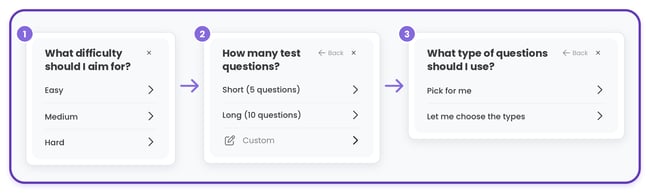
Pick how challenging your questions should be, so you know and feel confident that your team is ready to put their training to work.
| 🏋️ Difficulty level: | 🤔 How it challenges your team: |
| Easy | Basic recall and understanding type questions. These are great for quick check-ins that confirm your team has read training and remembers the key points. |
| Medium | Applied knowledge and multi-step problem-solving questions. This type helps show whether your team can connect the dots between their training and real day-to-day tasks and actions. |
| Hard | Complex scenarios requiring critical thinking questions. These help you confirm that your team can make smart decisions on their own, even when the answer isn’t directly black and white. |
Choose a test length that fits your training time and goals.
Pick between “Short (5 questions)” for a quick check-in or “Long (10 questions)” for a deeper review, or type any number up to 25 questions in the custom section.
Mix and match question types to keep your tests engaging and get a fuller picture of what your team is retaining.
| 🔘 Question options: | What you can do: |
| Pick for me | Let the assistant choose the strongest mix of question types for your material, saving you time while keeping your test engaging. |
| Let me choose the types | When you have a specific format in mind, choose the question types you’d like to include: single selection, multiple selection, true or false, written response, video response, or any combination. |
Review and publish your AI-generated test:
You’re almost there! Look over the plan, approve or tweak it, and build out your test.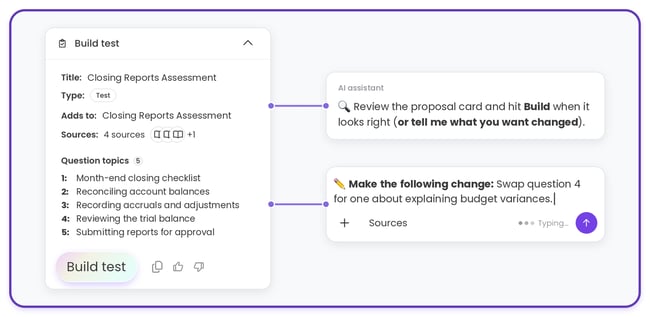
-
Review the generated test questions outline in the assistant panel.
-
Ask the assistant to add, change, or remove anything before it builds your test.
-
Hit the "Build test" button.
-
Make any final tweaks, then publish your test when it’s ready to roll out. 🥳
📝 Please note: After your AI-built test is generated, you'll need to make any updates directly in the test editor. For now, the assistant can only help with the initial build.
FAQs:
Where did the "Auto-generate test" button go?
As of November 24th, 2026, the AI assistant will handle auto-generated test creation in place of the “Auto-generate test” button. When you go to create a new test, the assistant will automatically open in a slide-out, ready to help you build your new test.
Can I use the AI-powered test feature on an existing test?
Not yet, but this is on our roadmap. For now, you can add individual questions manually using the "+ Add question" button in your test editor.
Do I have to use the AI assistant when creating a test?
Totally up to you! If you prefer the hands-on approach, simply click "I'll write it myself" or hit the "x" in the assistant panel to close it, then DIY. 🔨
Does any of our data leave Trainual when creating AI-powered tests?
Trainual uses OpenAI’s paid API to generate responses and proposed edits. Content you submit is processed securely and temporarily — it is not stored or logged beyond 30 days, or used to train OpenAI’s models. OpenAI’s ongoing model improvements occur independently of Trainual customer data.
How can I submit my feedback and ideas about features?
If you'd like to share your thoughts about Trainual tests or think of something else you'd like to see added in the future, send us your feature requests and ideas.
Learn more about Trainual tests:
-
Adjust test settings to best match your groups' learning content needs.
-
Access and review test attempt data to help pinpoint knowledge gaps.
- Set up email alerts so new test results come straight to your inbox for review.