![Trainual Logo (White).png]](https://help.trainual.com/hs-fs/hubfs/Logo/Trainual%20Logo%20(White).png?height=39&name=Trainual%20Logo%20(White).png)
Give your external apps, workflows, and AI agents the context they need to respond, act, and automate with confidence by connecting them with the Trainual MCP server.
👉 Before you start:
- The Trainual MCP is available under Premium and Enterprise plans. Contact our support team if you need help with upgrading your subscription.
- Only those with an Admin+ permission level can create MCP tokens.
- The info below is best suited for teams building custom AI agents, using AI-powered dev tools, or integrating Trainual data into automated workflows in other MCP-compatible clients (such as Claude Desktop, Windsurf, etc.)
🗂️ Table of contents: Skip around to just the parts you need with these links.
- Overview.
- Build a new MCP client configuration.
- Step 1: Create a MCP token.
- Step 2: Name your token.
- Step 3: Select your token permissions.
- Step 4: Generate, copy, and save your token.
- Step 5: Apply your token.
- Specific agent and app notes (Claude Desktop, Cursor, Windsurf, & Python).
- Manage existing tokens (view, revoke, edit, & track).
- FAQs.
- Learn more about Trainual tools and integrations.
Overview:
Connect external AI agents and apps to your account using the Trainual Model Context Protocol (MCP), an open standard for giving AI systems access to real-time data.
🤖 Plug in and watch your AI agent now:
-
🔎 Search training. Find fast answers across subjects, documents, and pages.
-
👤 Look up users and groups. Pull up details on things like roles and profiles.
-
📊 Check on assignment completions. Quickly monitor training progress.
-
🎉 And more!
Your Trainual no longer has to stay siloed — it becomes the driving context behind smarter AI responses, workflows, and automations. Let’s get you connected! 👇

🔹 Step 1 → To begin, you'll need to create an MCP token.
-
Click on your avatar from your top navigation bar.
-
Select "My settings."
-
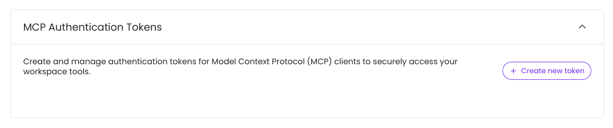
Locate the "MCP authentication tokens" section.
- Hit the "+ Create new token" button.
📝 Please note: Tokens operate on behalf of the user who creates them and inherit that user’s permissions. Keep this in mind when setting token permissions.
🔹 Step 2 → Name your token.
Easily identify your tokens by naming them after the tool or agent it connects to and its function. You may end up with multiple tokens over time, so clear names matter here!
🔹 Step 3 → Select your token permissions.
Choose the data your token can access.
| 🔑 Token permission: | 🔓 What it unlocks: |
| Fetch content. | Search and retrieve training content (subjects, documents, and pages). |
| Fetch users. | Look up user profiles, job titles, and org structure. |
| Fetch groups. | Search and retrieve groups and their members. |
| Fetch responsibilities. | Search and retrieve responsibilities. |
| Fetch assignments. |
Look up training assignments and completion statuses. |
| Fetch software & tools. | Search and retrieve software and tool records. |
| Fetch profile documents. | Search and retrieve user profile documents (such as certifications, licenses, etc.) |
📝 Please note:
-
Token permissions can't be altered once created. Changes require a new token.
-
Tool options are shown based on what you have access to as an individual user.
- All MCP tools are read-only. Connected agents and apps can query your Trainual data, but they can't create, edit, or delete anything in Trainual.
🔹 Step 4 → Generate, copy, and save your token.
-
Hit the "Generate token" button.
- Copy and store your token immediately. Your token will be displayed once and can't be retrieved again after you close this screen.
🔹 Step 5 → Apply your token.
All MCP requests authenticate using a bearer token in the request header.
Authorization: Bearer <your-mcp-token>
📑 Specific agents and app notes:
| 🖥️ Platform: | 🔧 Configuration: |
| Claude Desktop / Cursor / Windsurf. Add Trainual as a remote MCP server in your client’s configuration. |
{ "mcpServers": { "trainual": { "url": "https://mcp.trainual.com", "headers": { "Authorization": "Bearer <your-mcp-token>" } } }} |
|
Python. |
import asynciofrom mcp.client.streamable_http import streamablehttp_clientfrom mcp import ClientSessionasync def main(): async with streamablehttp_client( "https://mcp.trainual.com", headers={"Authorization": "Bearer <your-mcp-token>"} ) as (read, write, _): async with ClientSession(read, write) as session: await session.initialize() tools = await session.list_tools() print(tools)asyncio.run(main()) |
Manage existing tokens:
Monitor and maintain your MCP tokens to keep things secure and up to date.
| 💥 Action: | 📖 Description: |
| View active tokens. |
Navigate to your "My settings" page to view your active tokens.
|
| Revoke a token. | Click "Revoke" next to any token to invalidate it immediately. Revocation takes effect right away, even if the token hasn’t expired yet and any agents using that token will lose access. |
| Edit permissions. | Revoke the token and create a new one with the required token permissions. Remember, token permissions can’t be modified after a token is created. |
| Track token expirations. | Tokens expire 365 days after creation. Be sure to keep an eye out for expirations and rotate tokens before they expire to avoid disruptions. |
FAQs:
Why won't my external AI agent or app connect with my Trainual token?
🛠️ Start with this troubleshooting list:
-
Double-check that you’ve copied the full token and that it hasn’t expired.
-
Make sure that your client is pointing to
https://mcp.trainual.com.
🚧 If the issue persists, please reach out to our support team with the details.
Why am I receiving an authentication error in my external AI agent or app?
Token access may fail if a token is expired or revoked. If the token is not listed in your active view, generate a new one and update your external client's configuration. You may also need to ensure your user access to your Trainual is still active.
I can't get my external AI agent or app to connect to the data I need. What do I do?
🛠️ Start with this troubleshooting list:
-
Confirm that all relevant permission tokens were selected under the token you're using. If something is missing, revoke the token entirely and create a new one.
-
Verify your current Trainual access level — token permissions automatically reflect any changes or access removals with your Trainual permissions.
🚧 If the issue persists, please reach out to our support team with the details.
Why can’t I see every permission token option?
Token permissions will align with the permission level you have in Trainual. If you don't have that permission in Trainual, you won't see it listed as a token permission option.
How can I submit my feedback and ideas about features?
If you'd like to share your thoughts about the Trainual MCP server or think of something else you'd like to see added in the future, send us your feature requests and ideas.
Learn more about Trainual tools and integrations:
- Harness the power of Trainual, without having to leave Slack.
- Easily connect your Trainual account to thousands of other apps using Zapier.
- Present complex information in clear, visual steps using Trainual flowcharts.