![Trainual Logo (White).png]](https://help.trainual.com/hs-fs/hubfs/Logo/Trainual%20Logo%20(White).png?height=39&name=Trainual%20Logo%20(White).png)
Create individual training paths, with the option of scheduled breaks, to allow teammates to complete their learning tasks in a prioritized sequence for better retention. Distinct study ensures a well structured progression from foundational knowledge into more advanced skills.
👉 Before you start:
- Training paths are only available under specific Trainual plans. Contact our support team if you need help with your subscription.
- Only those with group manager access, Admin+ permissions, or who have direct reports listed under them can create, manage, and see training paths.
🗂️ Table of contents: Skip around to just the parts you need with these links.
Overview:
Tailored training paths set clear learning milestones for teammates, ensuring focus on relevant subjects and skills and avoiding overwhelm.
🪂 Sky's the limit with using this tool, but some quick ways to utilize this could be for...
| New hire onboarding. Create a weekly training schedule that prevents information overload. |
Re-training and refresher assignments. Ensure that your employees are up-to-date with the latest company knowledge. |
| Internal certifications and upskilling. Stay competitive in a rapidly evolving market by enhancing your employees' capabilities. |
Growth competencies for promotions. Identify teammate skill development and align training with career goals to help meet your evolving business needs. |
| Looking to make these scalable? 👀 Check out ↗ Training Path Templates. |
Create a brand-new training path:
1️⃣ Open the training path page for your trainee.
- Click "Account" on the left-hand navigation menu.
- Select "Manage users."
- Choose a teammate to create a training path for and open their profile.
- Hit the button in the corner of the section labeled "Training path." It will either read "Customize" or "Get started" depending on where you are in the process.
- If applicable: Open the link "Add content to this training path" to begin. If your user already has content assigned, you'll see that content populate here.
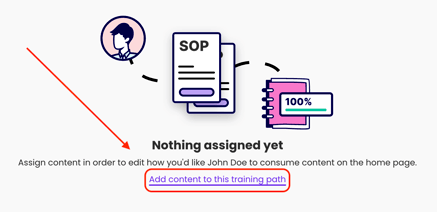
2️⃣ Add content to this new training path.
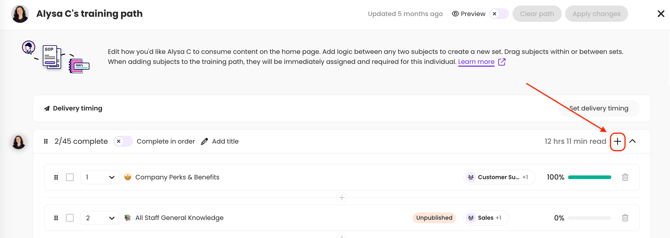
- Select the "+" symbol within a content set.
- Click the checkboxes next to the content titles you'd like to add to this path.
- Hit the "Add" button to immediately assign this content to your trainee.
Build a set of training paths:
Splitting content on a training path into different sets allows you to add an extra layer of customization. For example, when onboarding a new hire, you might want to teach them all about your company first, schedule team meet-and-greets second, and bring them back to Trainual for some role-specific policies and procedures third.
Building sets of training paths will help cover your more specific training needs, from refresher courses to upskilling the team and more.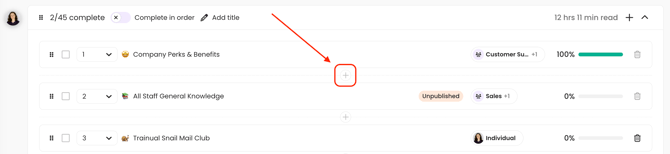
- Open the user's training path.
- Hit the "+" symbol between any two listed subjects to add a split.
- Click on the "Apply changes" button at the top of the page to implement and repeat this process as many times as needed.
Configure training path settings:
🔸 Set content to be completed in the listed order.
Turning on the “Complete in order” setting ensures your employees complete assignments one at a time and in order by locking access to their next content.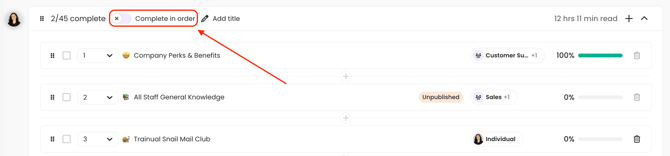
- Open the user's training path.
- Toggle on the "Complete in order" setting at the top of any content set.
- Hit the "Apply changes" button at the top of the page to implement.
🔸 Delay the release of content sets.
Setting a delay will create a training break between two different content sets.
- Open the user's training path.
- Click the "Set delivery timing" button at the top of the page.

- Choose the "Delays" option from the pop-up window.
- Hit "Save" to add the setting option to your content sets.
- Toggle on the "Delay" setting at the top of any content set.
- Enter the duration of the delay in day, week, or month increments.

- Hit the "Apply changes" button at the top of the page to implement.
📝 Please note:
- When you set a delay on the first set of content, the trainee will not see any of these assignments until this delay period has been met.
- Use case: Let's say your trainee’s first few days will consist of administrative work and you don’t want them to get started on training right away. You can set a three-day delay, for example, on the first set of content you've established so that nothing appears under their “To do” section on their “Home” page until their fourth day.
- For all other content sets, the delayed timeframe will be triggered to begin upon completion of the last subject in the previous set.
- When the delay has been successfully triggered, you will see a confirmation notification on the training path.
🔸 Schedule the date of release for content sets.
Setting a scheduled date for content sets makes them available on a specified date, regardless of any previous set's completion statuses.
- Open the user's training path.
- Click the "Set delivery timing" button at the top of the page.

- Choose the "Schedule dates" option from the pop-up window.
- Hit "Save" to add the setting option to your content sets.
- Toggle on the "Schedule date" setting at the top of any content set.
- Enter a schedule by choosing a date and time.

- Hit the "Apply changes" button at the top of the page to implement.
📝 Please note:
- Content sets with scheduled dates must be listed in chronological order on a user's training path in order for these changes to be applied. Reorder them if you encounter an error message.
- Double-check your trainee's listed time zone when using this feature option. If needed, coach them on how to make an update, so you're both in alignment with when their content sets are being released.
Make updates to an existing training path:
As your employees learn and grow within your company, so will their individual training paths. Learn how to do the following tasks to keep them on track! 🙌
🔹 How to open and review an existing training path page.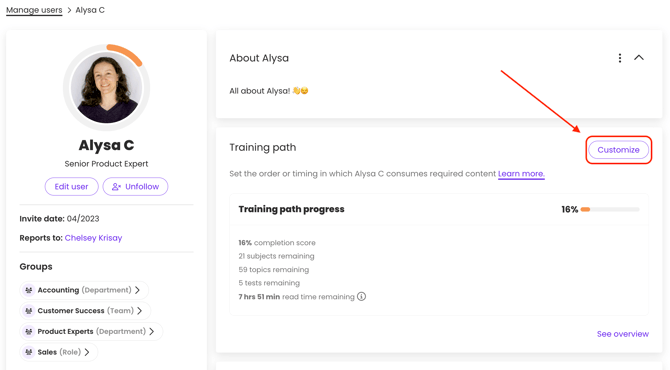
- Click "Account" from the left-hand navigation menu.
- Select "Manage users."
- Choose a teammate to create a training path for and open their profile.
- Hit the "Customize" button in the corner of the section labeled "Training path."
🔹 Add additional content to a training path.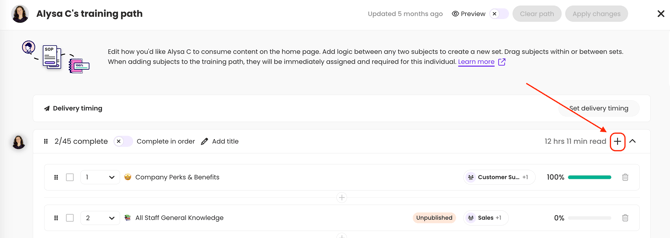
- Click the "+" symbol in the right-hand corner of the training path you're editing.
- Select all new content and hit the "Add" button.
📝 Please note: Adding content directly from a training path page will instantly assign the piece to the user, even if you have not hit “Apply changes.”
🔹 Reorder existing content on a training path.
-
- Option #1: Drag and drop a single piece of content to the newly desired position within the set.
- Option #2: Bulk rearrange multiple pieces by checking the boxes next to the titles of the content to be moved, then drag and drop them as a group to their newly desired position within the set.
- Option #3: Open the numbered dropdown menu next to the content title and select the position you'd like to rearrange that subject under.
Rearranging sets within a training path:
-
- Grab a set from the upper left-hand corner and drag and drop it to the desired position within a training path.
🔹 Remove content from an existing training path.

- Click the trash can icon next to the subject you wish to remove.
- Repeat the process as needed.
📝 Please note: Performing this action will immediately unassign the content. Any content assigned via a group will need to be unassigned from the "Groups" page.
🔹 Clear training path customizations.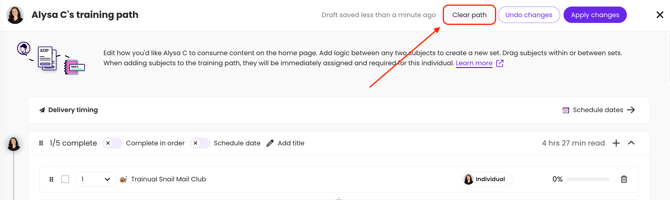
- Hit the "Clear path" button at the top of the user's training path page.
- Agree to reset all customizations by pushing the "Clear path" button on the pop-up window.
Track training path completions:
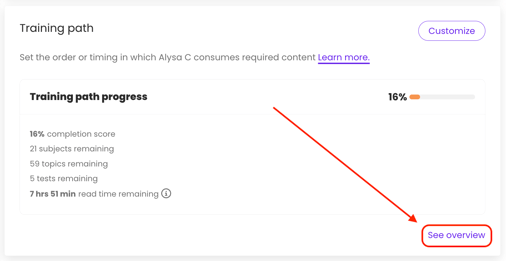
As your trainee begins working through their assigned content, you can follow their progress from within their training path page or overview page.
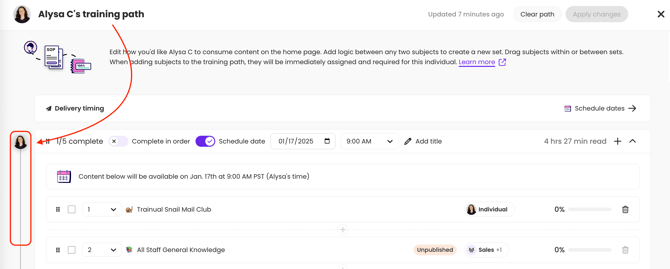
📑 Training path page: You'll see their employee avatar move along the path you've set as they complete their assigned content.
🔎 Overview page: You can access this page from a trainee's profile page under the "Training path" section by clicking on "See overview."
FAQs:
Which of my Trainual teammates can create training paths?
Billing Admin and Admin permission levels will have the ability to create training paths for anyone. Group managers and users who have direct reports listed under them will only be able to do this for the teammates they oversee.
What type of Trainual content can I assign under a training path?
Subjects that you want to require a teammate to complete (also known as "non-reference material") and that are either published or unpublished can be added to a training path. You can also include premium courses!
Where does newly added content display within a training path order?
Newly added content will always appear at the bottom of a training path set, regardless of how or where it was assigned from in Trainual. To adjust the placement of this new content, reconfigure the training path lineup from the training path page.
When a content set has a delay placed, does that timeframe include weekends?
Yes — the timeframe for a delay will include both business days and weekends.
Can I apply both the "Delays" and "Schedule dates" delivery timing settings to my content sets?
No. Only one of these setting options can be applied to content sets at any time.
How can I submit my feedback and ideas about features?
If you'd like to share your thoughts about training path features or think of something else you'd like to see added in the future, send us your feature requests and ideas.
Learn more about Trainual content access options:
- Use group share to assign content and manage subject access.
- Group people into roles, teams, and more for quick content assignments.
- Share individual Trainual subjects with people outside of your Trainual account.