![Trainual Logo (White).png]](https://help.trainual.com/hs-fs/hubfs/Logo/Trainual%20Logo%20(White).png?height=39&name=Trainual%20Logo%20(White).png)
Trade one-at-a-time user entries for a single file import. Fill out the template, upload it, and get your people into Trainual faster — that's more time for the rest of onboarding!
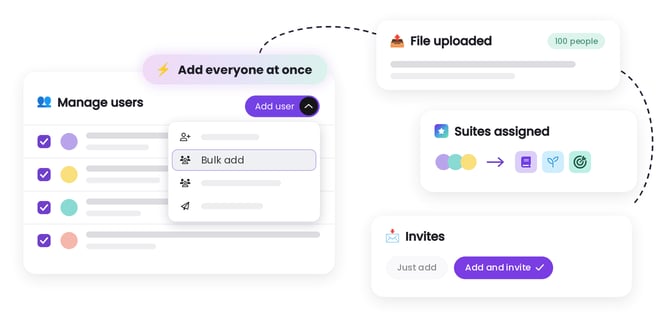

- Bulk user actions are available under any Trainual subscription. Contact our support team for any subscription help. 🤗
- Bulk user actions on the manage users page are only available to Admin+ permissions and group managers.
- 👀 Heads up: Using an HRIS? Skip the template and integrate with Trainual instead to keep your users' info continuously synced as things change.
🗂️ Table of contents: Skip around to just the parts you need with these links.
Overview:
If you don’t use an HRIS or payroll system, our bulk add template is an easy and simple alternative to adding a whole group of people to your Trainual all at once.
📁 Here’s how the bulk add template makes team setup easier:
-
✏️ Work in a familiar format. Download the file template as either an XLSX or CSV, then fill it in using your own spreadsheets or hiring lists.
-
🏁 Start everyone off in the right place. Prepping roles, teams, departments, locations, permissions, and suites as you work on your template file means new teammates join with the structure and access they need from day one.
-
📥 Import whole user batches together. Upload your completed bulk add template and get everyone into Trainual all at the same time.
-
📧 Choose when invites go out. Importing and inviting users are separate steps, so you control when your team receives their invitation email from Trainual.
Getting your people onboarded just became simpler than saying vitameatavegamin!

Before you start:
A few housekeeping items to check off your list first before diving in. 🧹
|
☐ Know your options for access levels. Review the permission levels available. ☐ Plan with your suites in mind. Decide which ones each user will need. ☐ Bookmark this guide for quick reference as you work. |

Access the bulk add template:
Grab your preferred template file type from the manage users page to get started.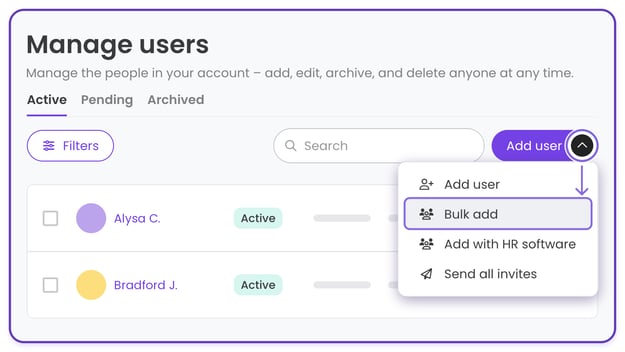
-
Expand "Account" from the left-hand navigation menu.
-
Choose "Manage users."
-
Open the "Add user" menu and select "Bulk add."
-
Hit "Get started" in the pop-up window and download the XLSX or CSV file.
|
💭 Strategy corner: Save time by matching your existing team’s info to the template’s column headers first. Then copy and paste your data over one column at a time. |
Prepare and fill out your bulk add template:
Get your template ready the right way with a quick look at the required columns, optional extras, and formatting tips that'll help you avoid troubleshooting.
Before you start adding info, scan the provided examples under each column in the bulk add template. They show how to enter your info, so your upload goes smoothly.
And to save yourself a few trips back to your records, gather these details first.
| 🔖 Entry type: | 🏛️ Columns: |
| Required |
|
| Optional |
|
🔥 Tip: Try keeping at least one example row in view as you fill out the bulk add template, so you can check your formatting against it as you go.
Time to add your people's info! Enter their details in each column, keeping the pre-titled headers unchanged, and saving your file as you go.
Before you upload your file to Trainual, check it against these formatting tips.
| 🚧 Common snags: | 🛡️ How to avoid them: |
| Spacing | Double spaces can cause issues when it comes time to upload , so use only one space between words in your file. For example, enter “Han Solo” with a single space between the first and last name. To double-check your work, press Command + F (Mac) or Control + F (PC) and search for multiple spaces in a row to hunt down any that slipped in. |
| Multiple groups | Adding someone to multiple groups of the same type? Enter each group name in the same cell, separated by a comma and a space (for example, “Sales, Support”). Your bulk add template includes more examples if needed. Double-check that every group you're including already exists in your Trainual account; otherwise, the system won't be able to complete that step. |
Upload your bulk add template to Trainual:
Your template is filled out and saved — now it’s time to bring your team in!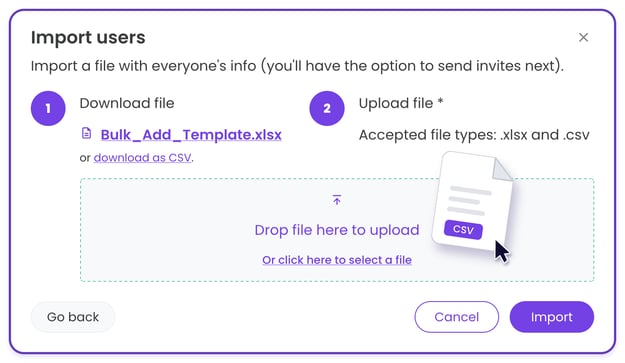
-
Navigate back to Trainual.
-
Drag and drop your file into the "Import users" pop-up.
-
Click the “Import” button to add your users.
Finalize suites, invitation choices, and finish up:
Last step: select the suites each person should access, then choose whether to invite these users immediately or add them quietly and send invites later when you’re ready.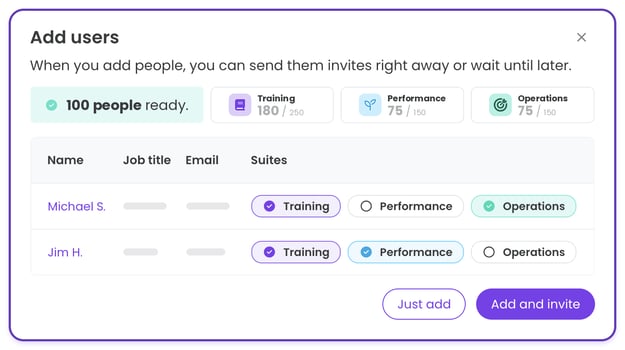
📝 Please note:
-
You can only add as many users as you have seats available under your suites. Need more room? Add seats or archive outdated profiles to free some up.
- Invite options:
- Add and invite. Adds everyone and sends their invites immediately.
- Just add. Adds everyone now and send invites later when you’re ready.
FAQs:
What do I do if my bulk add import fails?
If some users can’t be imported, Trainual will display a “Looks like there were some errors in your uploaded file – let’s fix it!” error message along with the total number of people who couldn’t be imported and a "What needs fixing" XLSX and CSV file.
Open that document to see what went wrong, correct those flagged entries in your own bulk add template, and upload the file again. Still stuck? Contact our support team.
What can I do if I’m having trouble formatting my bulk add template?
If your company’s AI policy allows it, you can try using your AI tool to reformat your team’s info for you. Provide it with your existing data and the bulk add template, and ask it to create an XLSX or CSV file for you. Review thoroughly before uploading into Trainual.
How can I submit my feedback and ideas about features?
If you'd like to share your thoughts on bulk user actions or suggest something else you'd like to see added in the future, send us your feature requests and ideas.
Learn more about managing users in Trainual:
- Invite, update, and offboard teammates all together with bulk user actions.
- Keep groups current through big changes and growth using bulk group actions.
- Build your whole role chart with AI to map out who does what in the company.