![Trainual Logo (White).png]](https://help.trainual.com/hs-fs/hubfs/Logo/Trainual%20Logo%20(White).png?height=39&name=Trainual%20Logo%20(White).png)
Big, important update just rolled out? Don’t leave things to chance! Send an immediate email to your team using notify changes, instead of waiting on your standard alerts.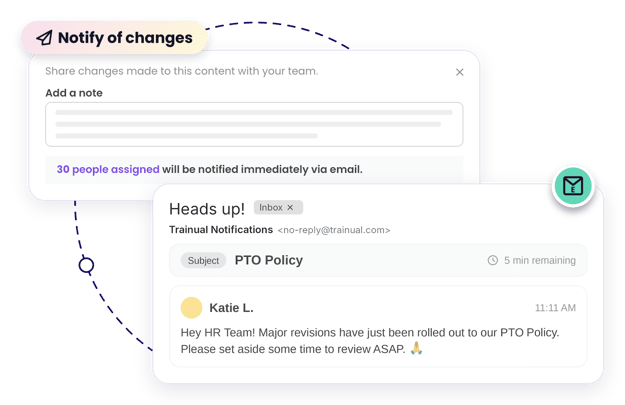

- The notify changes feature is available as part of the Training suite. Contact our support team for any subscription help. 🤗
- Your content must be set to "Published," and you must have at least one person assigned to the content to use the notify changes feature.
- The information below is best suited for content creators. For more specifics around which areas of the account and pieces of content your employees can access, review their permissions and content access.
🗂️ Table of contents: Skip around to just the parts you need with these links.
Notify your team of content changes:
In three quick steps, you can send your team a personalized heads-up about revisions.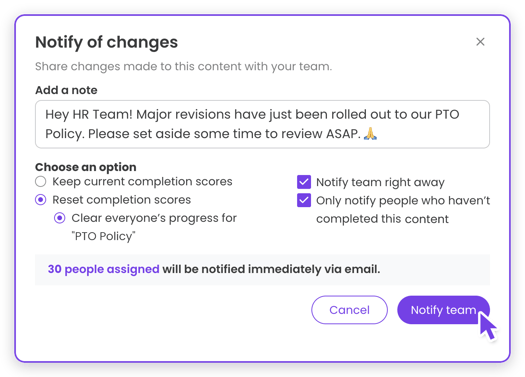
-
Open the content you'd like to notify your team about.
-
Click on the gear icon in the upper right-hand corner.
-
Select "Notify of changes" from the menu.
-
Use the "Add a note" textbox to explain to your team what's changed.
-
Pick what happens to your teammates’ progress on this content:
-
Keep current completion scores. Nothing changes — All assigned teammates keep their current completion scores for this content.
-
Reset completion scores. All assigned teammates' completion scores will roll back to 0% for this content.
-
-
Choose who hears about the update and when:
-
Send it immediately. Check the "Notify team right away" box to send out an immediate email about this change.
-
Only notify people who haven’t completed the content. Check this box to narrow the list to only teammates who haven’t finished the training.
-
-
Click the "Share changes" button to send out your update.
📝 Please note: If the "Notify team right away" box isn’t checked, your update will be included in your team’s next daily round-up email instead of being sent out instantly.
Check and adjust who’s assigned from notify changes:
Want to double-check who this is going to? Use these instructions to review the full list, and add or subtract anyone from there before you send out the email.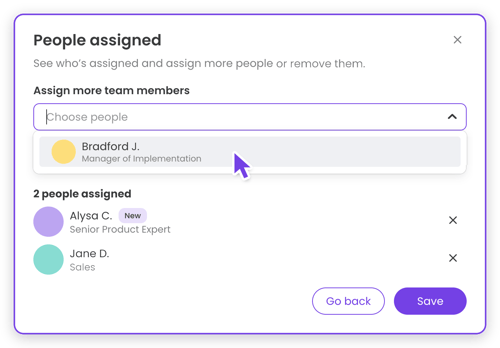
-
Open the "Notify of changes" feature.
-
Click the "[#] people assigned" link to open the "People assigned" list.
-
Take action:
-
Add people. Assign more team members using the drop-down menu.
-
Remove people. Use the "x" next to an assigned user to remove them.
-
-
Hit "Save," then "Confirm" to apply your changes.
-
Complete any remaining notify change steps.
📝 Please note: Assigning someone to content makes them responsible for completing it, and their progress will be tracked with a completion score. If someone only needs it as reference material, follow these steps to give them access without assigning it.
Introduce notify changes emails to your team:
Take a moment to set expectations and give your people a heads-up about these new-to-them messages. A little "why" goes a long way in helping adapt to change. 😉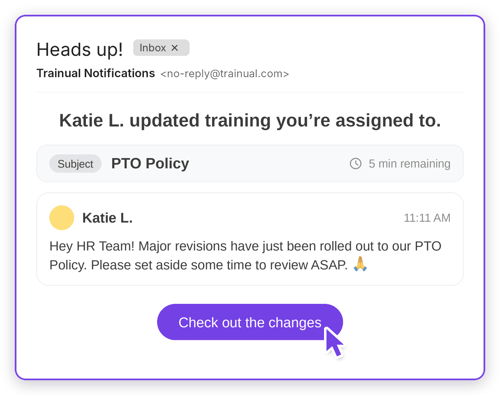
| What to cover: | What to share: |
| 📨 Help them recognize these emails when they arrive. |
🔸 Before the first email lands, mention that...
|
| 👀 Walk them through what they'll see inside each email. |
🔸 Show your team what the email includes.
|
| 🎉 Emphasize the benefits of these types of emails. |
🔸 Ask yourself these questions, then share your answers to show your team what’s in it for them.
|
FAQs:
Why can’t I keep or reset completion scores when I go to notify my team of changes?
Completion score options are hidden when your content includes an e-signature requirement. This protects the signatures on the existing content you’ve collected prior.
To use the notify changes feature, turn off all existing e-signatures on that content, send your notification, then reapply your e-signature requirements.
What should I do if someone doesn’t receive a notify changes email?
Double-check if they are assigned to the content. If they are assigned, walk them through these common email delivery issues. If they are still experiencing trouble after trying these recommendations, please reach out to our support team.
How can I submit my feedback and ideas about features?
If you'd like to share your thoughts about notify changes or think of something else you'd like to see added in the future, send us your feature requests and ideas.
Learn more about Trainual notifications:
- Control default company notifications and decide what users can customize.
- Set automatic email notifications when new test results are available for review.
- Use the top navigation notification icon to view all your platform alerts.