![Trainual Logo (White).png]](https://help.trainual.com/hs-fs/hubfs/Logo/Trainual%20Logo%20(White).png?height=39&name=Trainual%20Logo%20(White).png)
Make every meeting count! Build your agendas, track your action items, and tie every conversation to the targets and KPIs that matter most, all inside of Trainual.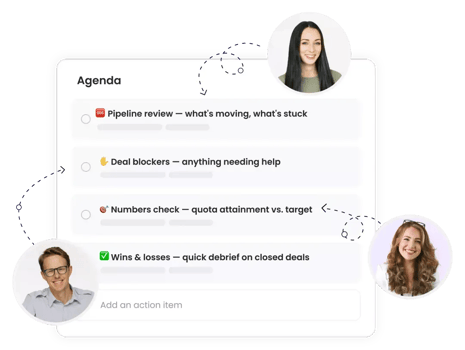
👉 Before you start:
- The meetings feature is available as part of the operations suite. Contact our support team for any subscription help. 🤗
- All permission levels can create new meetings. For meetings someone is a participant in, they'll be able to edit and run them — except for the "Shared notes" section, which only the meeting owner can edit, but everyone can see.
🗂️ Table of contents: Skip around to just the parts you need with these links.
- Meetings overview.
- Meeting types.
- Build a new meeting.
- Connect an existing calendar.
- Prep for an existing meeting.
- Run a meeting.
- Favorite a meeting.
- Edit an existing meeting template.
- Filter the view of your meetings.
- Delete a meeting.
- Additional resources about meetings.
- FAQs.
- Learn more about Trainual.
Meetings overview:
We're about to make you that person — the one who runs really great meetings. 😎
🗓️ Here's what makes Trainual meetings standout:
-
🔦 Create clarity before a meeting starts with specified agenda items.
-
📋 Capture next steps by assigning action items to owners and tracking follow-ups during and after meetings.
-
🖇️ Connect discussions to data by linking relevant scorecards and goals to your meetings to review together, to talk about, and to brainstorm on.
Focus before meetings, accountability during, and follow-through after — that's what you get with every Trainual-run meeting. Keep going to get your first one off the ground.
Meeting types:
Before you create your first meeting, it helps to know which type fits your needs:
⏸️ Hold up... do you have a Google (Gmail) or Microsoft (Outlook) calendar that uses the same email as your Trainual account? 👀 Use the integration instead!
Build a new meeting:
Your first Trainual-run meeting is just three steps away. Here's what you need to start.
🔹 Step 1 → To begin, you'll need to set up some meeting basics.
-
Expand "Operations" from the left-hand navigation menu.
-
Select "Meetings."
-
Hit the "New meeting" button.
-
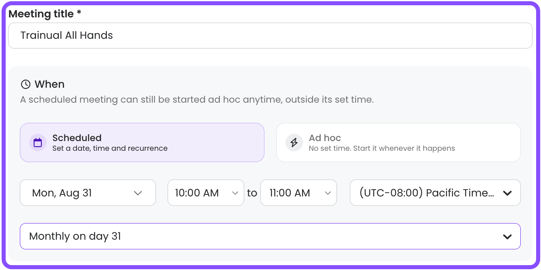
Fill out the basics.
-
Title. Provide a descriptive name for your meeting.
- When. Schedule a recurring meeting with a set date and time, or create one ad hoc to launch on demand.
- 📝 Please note: The meeting time displays in your personal user account's time zone by default, but attendees will see it in theirs.
- 🔥 Tip: If you just need a standalone, one-time meeting, be sure to select "Doesn't repeat" or add the meeting ad hoc.
-
🔹 Step 2 → Decide on attendees, add a conferencing link, input a physical meeting location, and include any other meeting details in the description box.
-
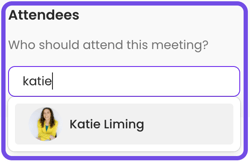
Use the “Attendees” search bar to invite individual users and groups.
-
(Optional) Add an online meeting link using the "Conferencing" section.

- (Optional) Add a physical meeting area using the "Location" section.

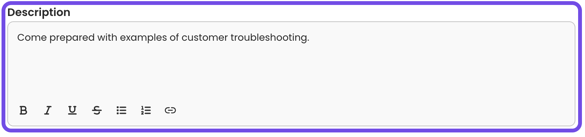
- Include any relevant meeting details in the description box.
🔹 Step 3 → Publish your new meeting.
Hit the "Create meeting" button to launch your newly minted meeting! 🚀
📝 Please note:
-
You'll be redirected to that meeting's prep page to add any additional details.
-
Meeting invites will be sent via email and in-app notifications.
Connect an existing calendar:
Import meetings from your own Google Calendar (Gmail) or Microsoft Calendar (Outlook) — including times and attendees — directly into Trainual.
- Expand "Operations" from the left-hand navigation menu.
- Select "Meetings."
- Click the "Connect Calendar" button in the top banner.

- Hit the "Connect your account" button under the "Integrations & AI" tab → "Calendar integrations" section of your "My settings" page.
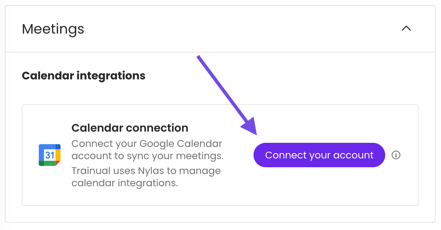
- Select and approve permission and sync details. You'll see a confirmation notification in Trainual once the connection is active.
- Navigate back to the “Meetings” page.
- Decide what gets imported using the "Import new meetings" pop-up window.
- Keep the meetings you'd like to import selected using their checkboxes.
- Unselect the meetings you wish to dismiss for now by unselecting their checkboxes. These will move under the "Dismissed" tab.
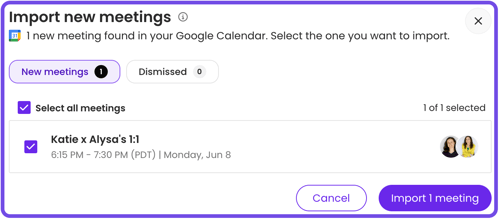
- Hit the “Import (#) meeting” button to finalize your first imports.
🔄 To import more meetings post setup, simply click the link icon (🔗) in the top right corner of the meetings page, and repeat steps 7 and 8. 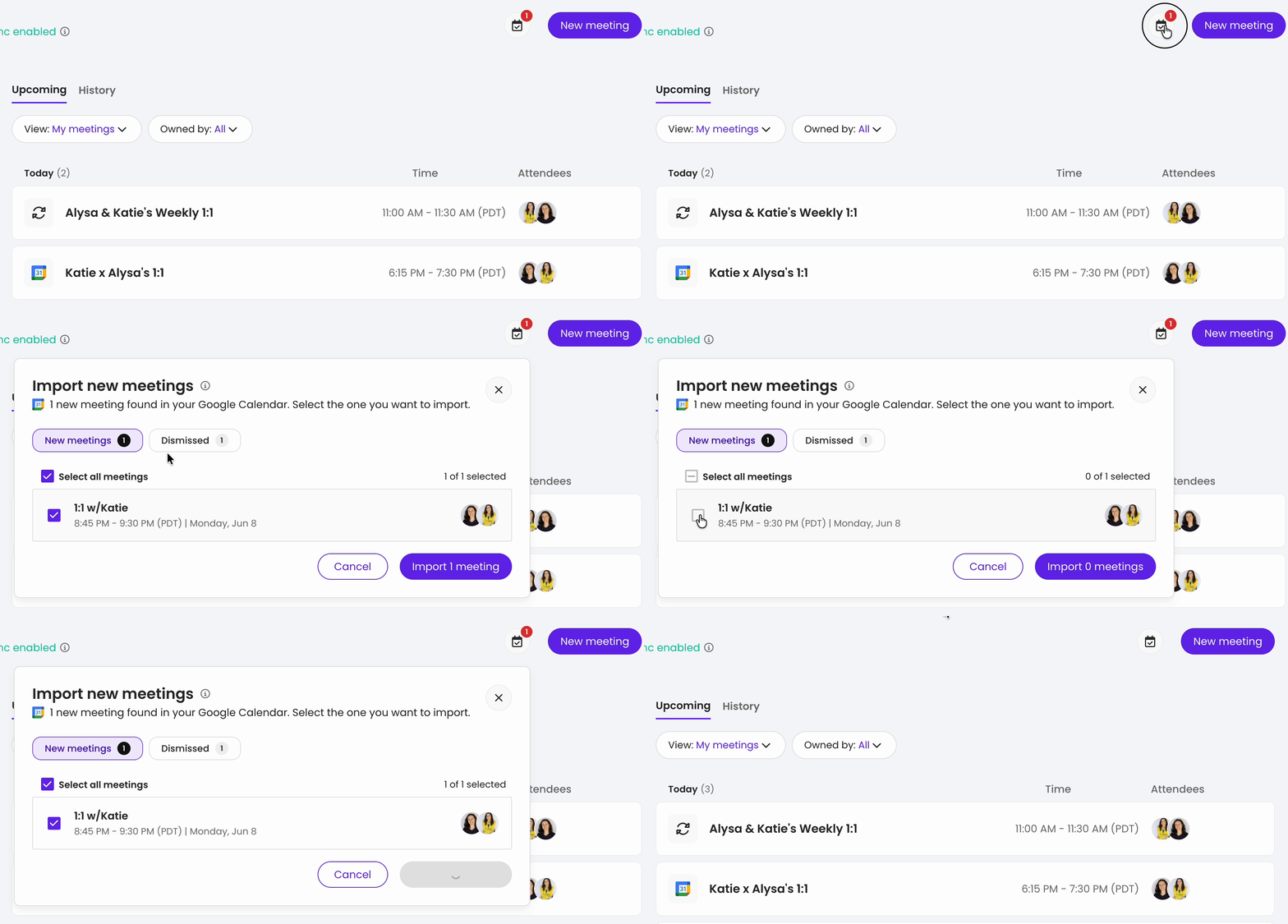 |
📝 Please note:
- The email on your calendar must match the one used on your Trainual profile.
-
Connecting a calendar will bring over all your meetings that:
-
Have you as the owner of the calendar invite.
-
Are on your primary calendar.
-
There are at least 2+ attendees on.
-
- Your ongoing meeting updates and edits will stay aligned in both Trainual and on your synced personal calendar.
Prep for an existing meeting:
Before a meeting starts, you'll be able to add to, organize, and review its full details.
-
Expand "Operations" from the left-hand navigation menu.
-
Select "Meetings."
-
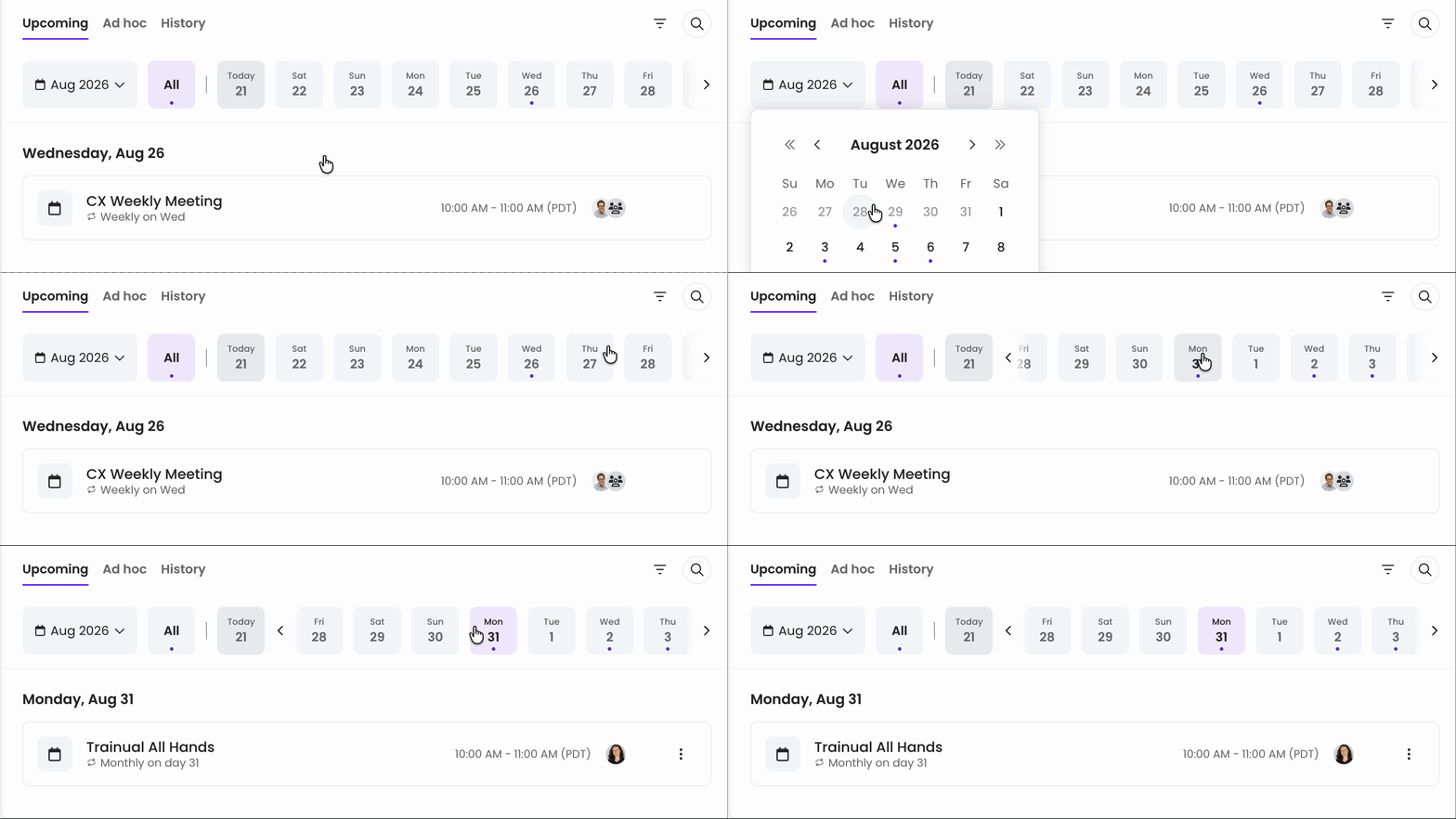
Navigate to a meeting.
- Use the “Upcoming” tab to jump to a scheduled meeting.
- Use the “Upcoming” tab to jump to a scheduled meeting.
- Add or adjust details for this existing meeting.
| Section name: | Section overview: | Examples: |
| 📋 Agenda | Outline the basic structure of your recurring meetings that remain the same across all meetings in the series. Use this to organize your meeting flow, to set expectations, and to keep things focused. |
|
| 💥 Action items | Capture tasks that need to occur during this meeting and follow-ups that surface as a result of your meeting. Each item can be assigned to an owner with a due date to ensure accountability after the meeting ends. |
|
| 🥅 Scorecards | Frame recurring KPIs within your meeting so the team can see how key metrics are trending at a glance, and quickly identify what, if anything, needs attention. |
|
| 🏆 Goals | Keep the bigger picture front and center with visibility into what your people and teams are working toward and where progress stands. Unlike scorecards, goals show whether you're on pace to hit defined, specified targets. |
|
| 📨 Updates | Pull in your team's recurring check-in responses so things like progress, blockers, or wins are visible and ready to discuss during the meeting. |
|
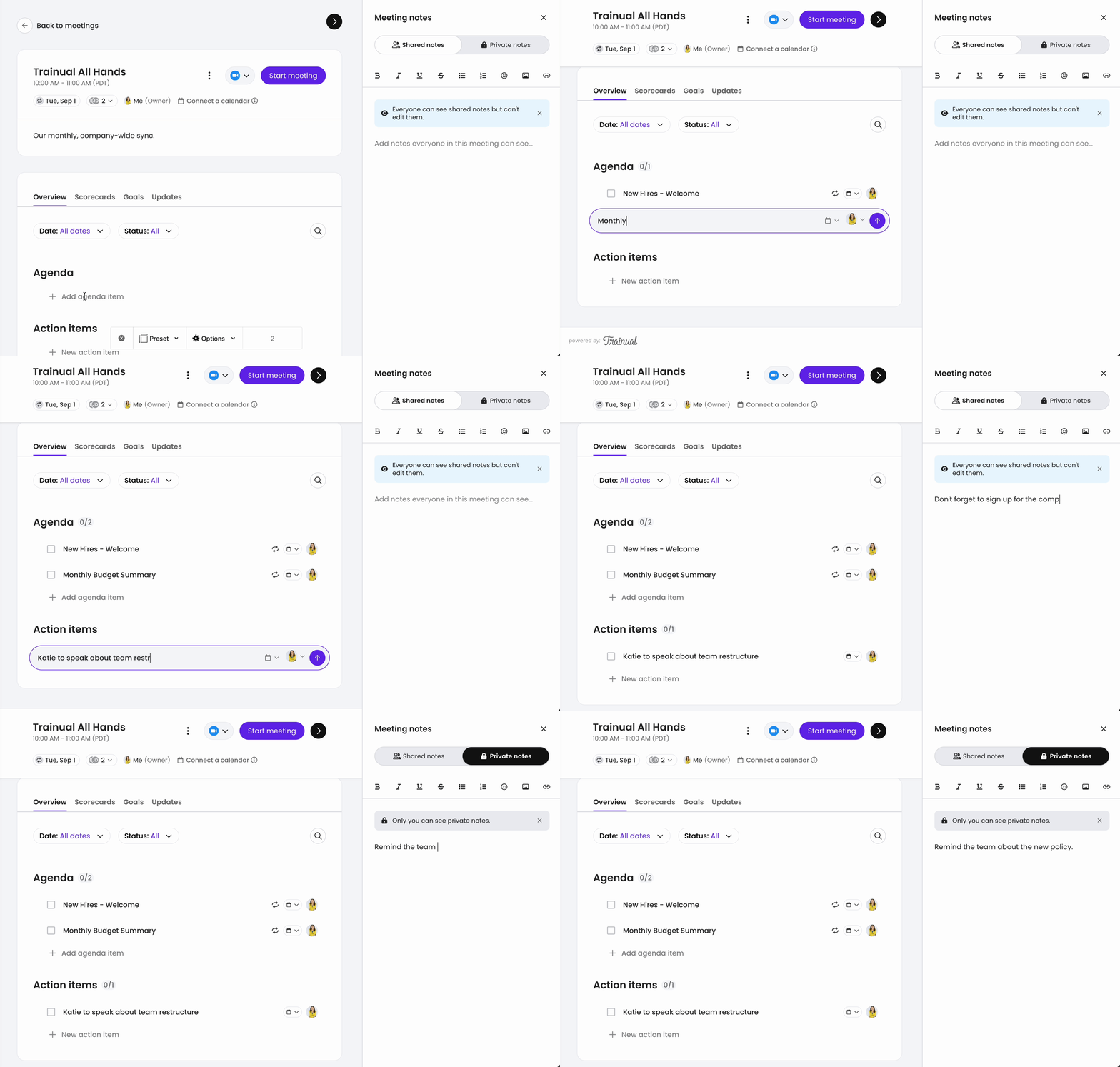
| ✏️ Notes | As the meeting owner, add shared notes to be visible to all your attendees during the meeting, or add private notes only you can see. Shared notes are great for documenting key takeaways for the group, and private notes can help you track personal reminders or actions. |
|
📸 See inside a meeting being prepped.
📝 Please note: All attendees can complete these tasks except adding to the "Shared notes" section, which is limited to just the meeting owner.
Run a meeting:
Ready to go live? Follow these steps to start your meeting and explore the tools you'll have at your fingertips once your session has started.
👩💻 Start your meeting.
-
Expand "Operations" from the left-hand navigation menu.
-
Select "Meetings."
-
Navigate to a meeting.
- Use the “Upcoming” tab to jump to a scheduled meeting.
- Use the “Upcoming” tab to jump to a scheduled meeting.
- Hit the "Start meeting" button next to the meeting title.
🛠️ Tools available during a live meeting.
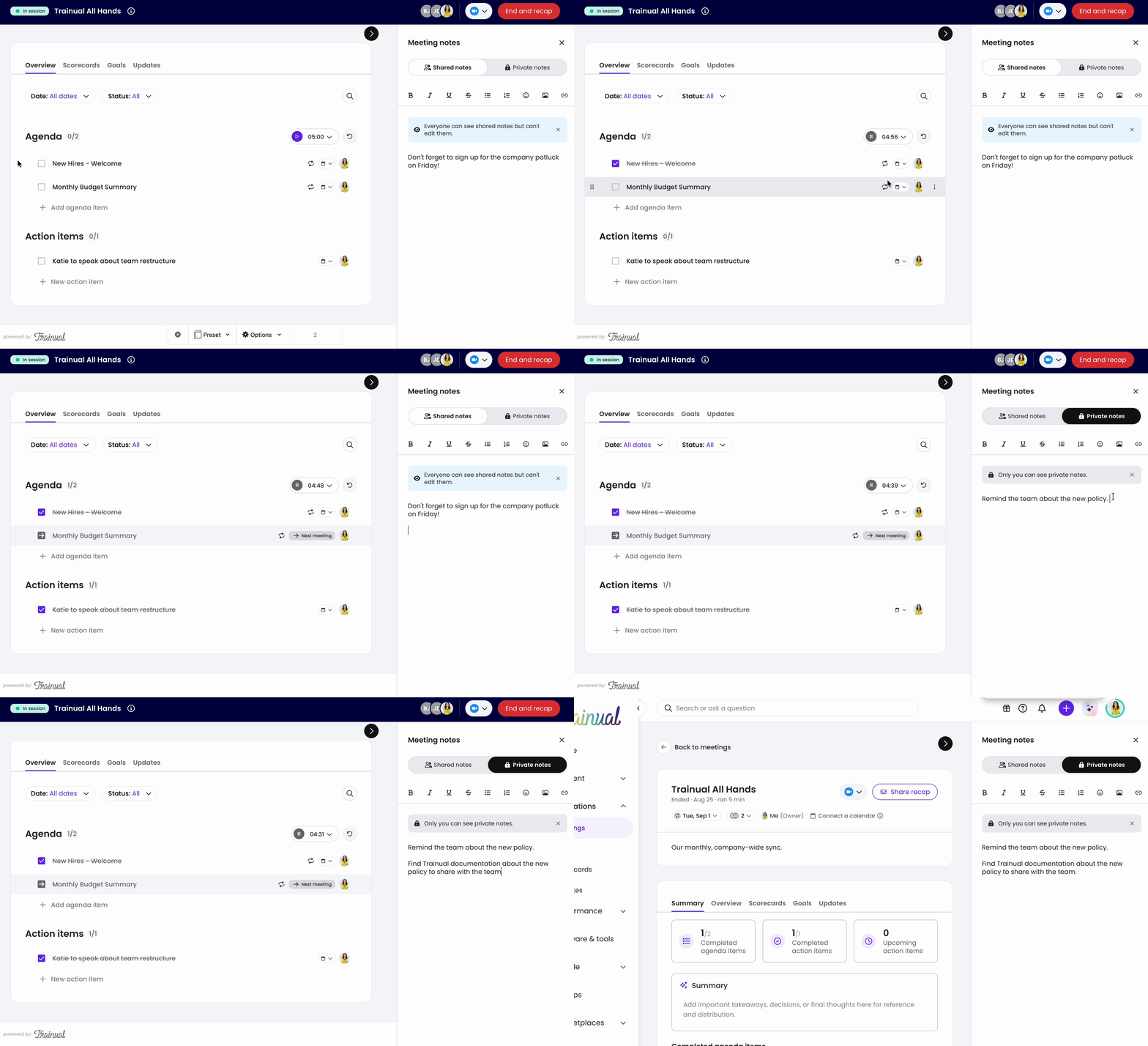
All your prep work carries over into the live session, plus these additional capabilities:
| Tool: | Tool Description: |
| ⏱️ Timer | Start a stopwatch or set a countdown by using the timer in the "Agenda" area. This is useful for instances like time-boxing topics or for giving each speaker equal time to present. |
| ↗️ Defer, move, or convert |
Click the three-dot menu (⋮) next to an agenda or action item and select one of the following to make changes.
|
| ❌ Delete |
Remove agenda and action items by clicking the three-dot menu (⋮) on that line and choosing "Delete." 📝 Please note: This action is permanent and cannot be undone. |
| ✏️ Notes | View the shared notes the meeting owner has created and add your own private notes during the session by clicking on the paper icon (📄) in the top right-hand corner. |
| 🚪 Leave view | Step out of the live meeting to find something else in Trainual. Hit the "Back to meeting" button to return when you're ready. |
| 🏁 End & recap | Hit the "End & recap" to close the meeting. From here, add a summary, document any next steps, and share the finalized meeting recap with attendees. |
🔥 Tip: Any agenda or action items not checked off during a live meeting will automatically roll over into the next meeting in the series.
📸 See inside a live meeting.
Favorite a meeting:
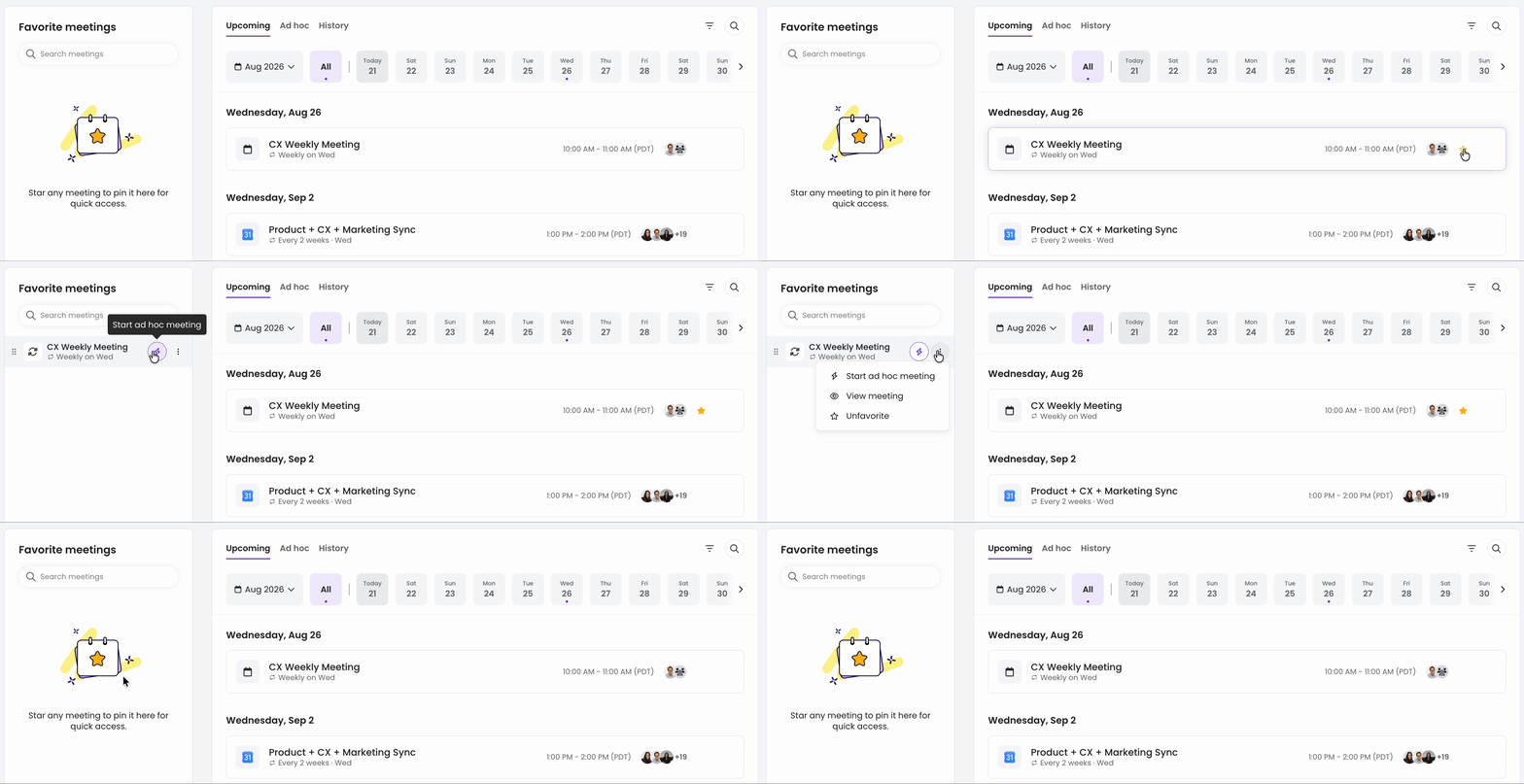
If you have meetings you access and contribute to frequently, why not favorite them for quick access? Favorited meetings appear in a dedicated "Favorite meetings" section in the top right of area of your meetings page, so they are always one click away.
To favorite a meeting, click the star icon (⭐) next to the meeting name. Use the three-dot menu (⋮) and hit "Unfavorite" to remove it from your favorites list at any time.
Edit an existing meeting template:
-
Expand "Operations" from the left-hand navigation menu.
-
Select "Meetings."
-
Navigate to a meeting.
-
Use the “Upcoming” tab to jump to a scheduled meeting.
-
- Open the meeting you'd like to edit.
-
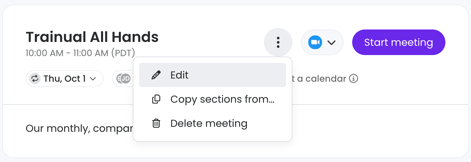
Click the three-dot menu (⋮) next to the meeting title and choose "Edit."
-
Make your adjustments to any of the following: Title, date, time, and recurrence cadence, attendees, conferencing link, physical meeting location, description details, and meeting owner.
-
Hit the "Save changes" button to apply your changes.
Filter the view of your meetings:
Use the filters at the top of the meetings page to find and organize your meetings. The same filters are available on the "Upcoming," "Ad hoc," and "History" tabs.
👀 Owned by
| "Me" to display the meetings you're the owner of. |
| "All" to show every meeting you have visibility into. |
👤 Type
| "All" to see every meeting you have visibility into. |
| "1:1" to select meetings that occur between you and just one other person. |
| "Team" to show every meeting that your teams are part of. |
| "Recurring" to display the meetings that are on a set cadence to repeat. |
🎥 Assets
| "All" to see every meeting you have visibility into. |
| "Recording" to select meetings that include a video recording. |
| "Transcript" to show every meeting that include a transcript. |
| "Summary" to display the meetings that include a summary. |
Delete a meeting:
-
Expand "Operations" from the left-hand navigation menu.
-
Select "Meetings."
-
Click the three dots (⋮) next to your meeting's title.
-
Choose "Delete" from the drop-down menu.
-
Decide what you'd like to delete from the pop-up window.
-
This meeting.
-
This and all future meetings.
-
All events and history.
-
-
Decide if you'd like to also remove the meeting from your linked calendar.

-
Hit the "Delete" button to finalize your choices.
📝 Please note: This action is permanent and cannot be undone or reversed.
Additional resources about meetings:
Take your meetings into the stratosphere with these other great learning resources.
- 👨🏫 On-demand learning: Operations suite basics — super quick workshop.
- ♟️ Strategy guide: How to roll out the operations suite.
FAQs:
What happened to discussion topics?
Discussion topics are now a part of agenda items. Your existing topics were migrated to become non-recurring agenda items in your existing meetings during the August 27th, 2026 update. Agenda items will also support nesting for added flexibility.
How do I change a recurring agenda item to a single instance?
Open your meeting → find the agenda item → and click the calendar icon. In the pop-up, unselect the "Recurring" option. The change will save automatically.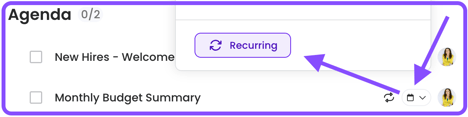
What does "two-way sync ” mean when integrating a calendar to Trainual meetings?
Once connected, your meetings will...
-
Be available to import in Trainual from your connected calendar.
-
Be sent to your personal calendar when created in Trainual.
-
Reflect edits on both the calendar event and in Trainual, regardless of where the edit or change was originally made.
How do I sync my calendar after selecting 'I'll do it later' from the banner prompt?
The connect option displays as a link icon at the top of your meetings page after the banner is dismissed. Click it and follow these how-to steps to get connected.
How are meeting attendees sorted?
Attendees are listed alphabetically, whether they were added individually or as a group.
How do I disconnect my existing calendar sync from Trainual meetings?
Navigate to "My settings." Under the "Integrations & AI" tab → look for the "Calendar integrations" section → then click "Connected" and select "Disconnect my account." A banner will confirm the disconnection was successful.
Can I connect training content to my meetings?
Not at this time, but it is something we have on our roadmap. Stay tuned! 🛣️
Are meetings available on the Trainual mobile app?
Not yet. But this is on our roadmap. Stay tuned! 🛣️
How can I submit my feedback and ideas about features?
If you'd like to share your thoughts about the operations suite or think of something else you'd like to see added in the future, send us your feature requests and ideas.
Learn more about Trainual:
- Join a free live learning session designed to help you maximize your training.
- Access a library of 400+ expert-built training courses to stay compliant.
- Consistently onboard and educate your team at scale using training paths.