![Trainual Logo (White).png]](https://help.trainual.com/hs-fs/hubfs/Logo/Trainual%20Logo%20(White).png?height=39&name=Trainual%20Logo%20(White).png)
Picture prepping for a review cycle, a 1:1, or a stretch goal with every win, coaching moment, and growth area already pulled together for you to look back on. That's the Performance tab: a spot on each user profile where progress lives year-round. 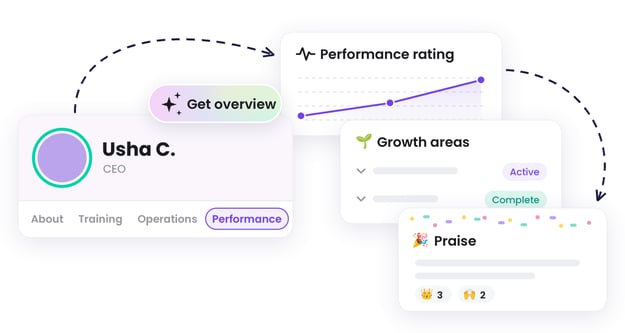

- The Performance tab feature is available as part of the Performance suite. Contact our support team for any subscription help. 🤗
- Everyone with an active Performance seat can view their own Performance tab and can access and edit the core components of their own user profile.
- Permissions aren't one-size-fits-all here, and what you can see and edit within each section depends on your permissions and your relationship to the person whose profile you're viewing. See each relevant sections below (ratings, growth, praise and feedback, reviews, private notes, and AI tools) for the specific level breakdowns that apply.
🗂️ Table of contents: Skip around to just the parts you need with these links.
- Overview.
- Video walkthrough.
- Open the Performance tab.
- Rate a user's performance.
- Manage growth areas.
- View praise and feedback.
- Access review packets.
- Manage private notes.
- Trainual AI + Performance tab.
- Additional resources about the Performance tab.
- FAQs.
- Learn more about managing people in Trainual.
Overview:
Growth is a two-way street with the Performance tab. You'll have a clear view of your own progress and manager-level insights for those you oversee.
🧩 No more conversation gaps with performance context like this:
- 📈 Spot the trend. As a manager, your private performance ratings plot on a line chart, so you can quickly see how someone's standings are shifting.
- 🕵️♂️ Revisit your own private notes. Observations you've saved along the way about yourself or others keep your talking points timely and ready to go.
- 📁 Follow up based on past reviews. Once review results are shared, you can revisit them here to reference the summary, growth areas, and any review responses included in those shared results.
- 🌱 Gauge growth areas. See which developmental areas are active, have been completed, and which ones need a nudge for yourself or those you manage.
- 🎉 Review recent praise and feedback. Check those recorded moments that help you strike the balance between celebrating and course-correcting.
With every performance insight in one spot, your meeting prep feels less like cramming and more like a quick refresher. Showing up ready has never felt so easy! 😎

Video walkthrough:
| ✏️ Want the written steps too? Pick a topic to jump to: |
-
0:08 → Open a user's Performance tab.
-
0:32 → Manage a user's growth areas.
-
1:14 → View a user's review results.
-
1:21 → Add private notes.
Open the Performance tab:
Whether you're reflecting on your own growth or prepping to support someone else's, here's how to pull up the Performance tab.
-
Accessing your own Performance tab: You can always access your own.
-
Opening someone else's Performance tab:
- Both you and the other person must have Performance suite access.
-
If you're a Billing Admin or someone's within your reporting chain (direct and indirect reports), you can access their Performance tab.
-
Additional notes: Standard Admin permissions alone don't grant access to everyone's Performance tabs.
-
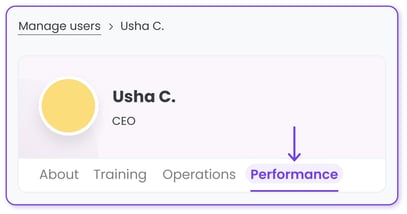
-
Click on your avatar in the top navigation bar.
-
Select your name from the drop-down menu.
-
Open your "Performance" tab.
-
Expand "Account" from the left-hand navigation menu.
-
Select "Manage users."
-
Click on their name to view their user profile.
-
Open their "Performance" tab.
Rate a user's performance:
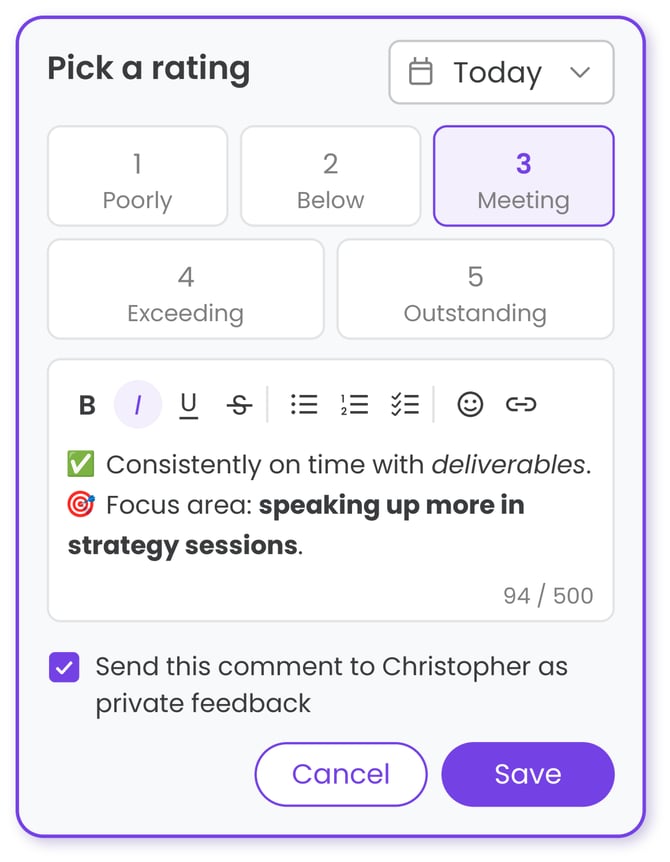
Build a running, detailed record of how someone is performing, one rating at a time. When review season comes around, you'll have the receipts at your fingertips.
-
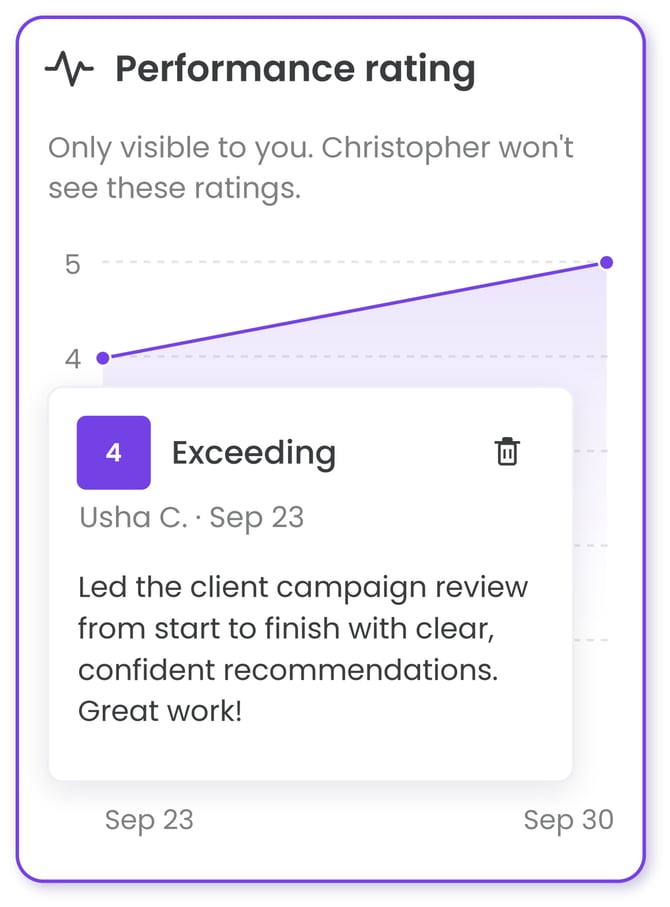
You'll only see the Performance rating section for users you directly manage. Ratings and their written context are private to the manager who recorded them and are not visible to the employee or to other managers.
-
If you do choose to send your written comments from a rating to the employee as feedback, only the comment is shared with them — not the rating.
| Action: | Action benefits: | How to use it: |
| 👁️ Review existing ratings | Revisit why you gave a rating, so you can bring specific talk tracks to your next conversation. |
📝 Please note: To delete a rating, click the trash can icon in the pop-up. |
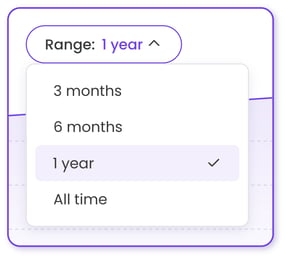
| 🗂️ Filter ratings | Narrow down the Performance rating chart to display only a specific stretch of time, like the months since a last review, to spot short-term shifts or long-term trends. |
|
| ➕ Add a rating | Capture how someone is performing in the moment, or catch up on recording past milestones, so the rating trend line always tells the full story. |
📝 Please note: You can backdate a rating, but you can't future-date one. |
Manage growth areas:
Development works best when everyone's on the same page. The growth areas section gives managers and employees one shared place to see what to work on next.
-
You can view, add, and edit growth areas on...
-
Your own profile.
-
The profiles of anyone in your reporting chain, including indirect reports.
-
-
Billing Admins can also manage growth areas across the account.
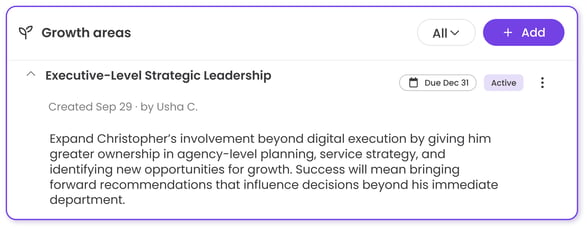
| 🌱 View existing growth areas: |
-
Scroll to the "Growth areas" section.
- Click the arrow next to a growth area to expand it.
🔎 Each growth area shows these details, once expanded.
-
Title and status (draft, active, complete, or archived).
-
Who created it and when.
-
Key dates, like a due date or the date it was completed.
-
Description (if it was entered) for added context.
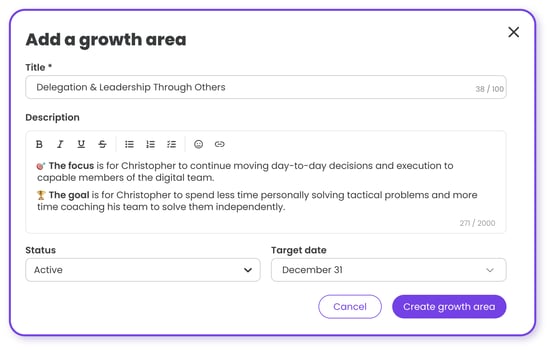
| 🌱 Add a new growth area: |
-
Scroll to the "Growth areas" section.
-
Click the "+ Add" button.
-
Enter the details of this new growth area
-
Title (required): Name the skill or behavior to work on.
-
Description (optional): Add context, like what success looks like.
-
Status (required): Choose between draft, active, or complete.
-
Target date (optional): Pick a past or future date.
-
-
Hit the "Create growth area" button to add it.
📝 Please note: The steps are the same whether you're adding a growth area for yourself or someone else.
-
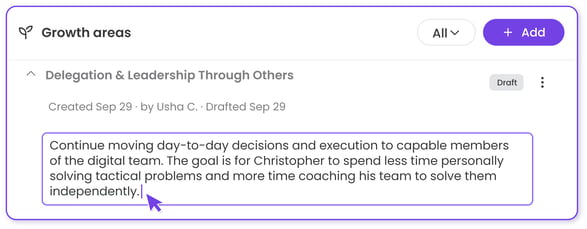
Scroll to the "Growth areas" section.
-
Click the arrow next to a growth area to expand it.
-
Click into the title or description to make changes.
-
Click the three dots (⋮) to change the status to draft, active, complete, or archived.
Your changes will save automatically. ✅
📝 Please note: The created date, creator, and status date can't be edited.
-
Scroll to the "Growth areas" section.
-
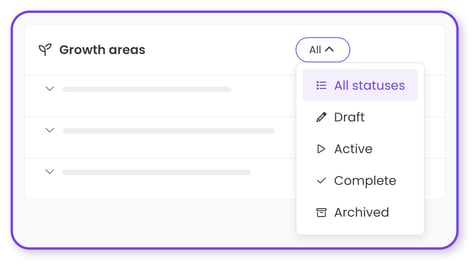
Click the "All" drop-down.
-
Select a status option: All statuses, draft, active, complete, or archived. The chart will auto-update.
View praise and feedback:
Praise is public, and feedback is private, but both live here. Whether you're reflecting on your own growth or checking in on a teammate's, you'll see all linked praise, plus any feedback you have permission to view.
-
Billing Admins can always see all feedback given, company-wide.
-
Anyone who sends feedback can always view what they've submitted.
- The sender decides who else sees their feedback: just the recipient, the recipient and their managers, or only the recipient's managers.
📚 For a full walkthrough on this feature, see "Praise and Feedback." ↗
| 💬 Look through existing praise and feedback: |
-
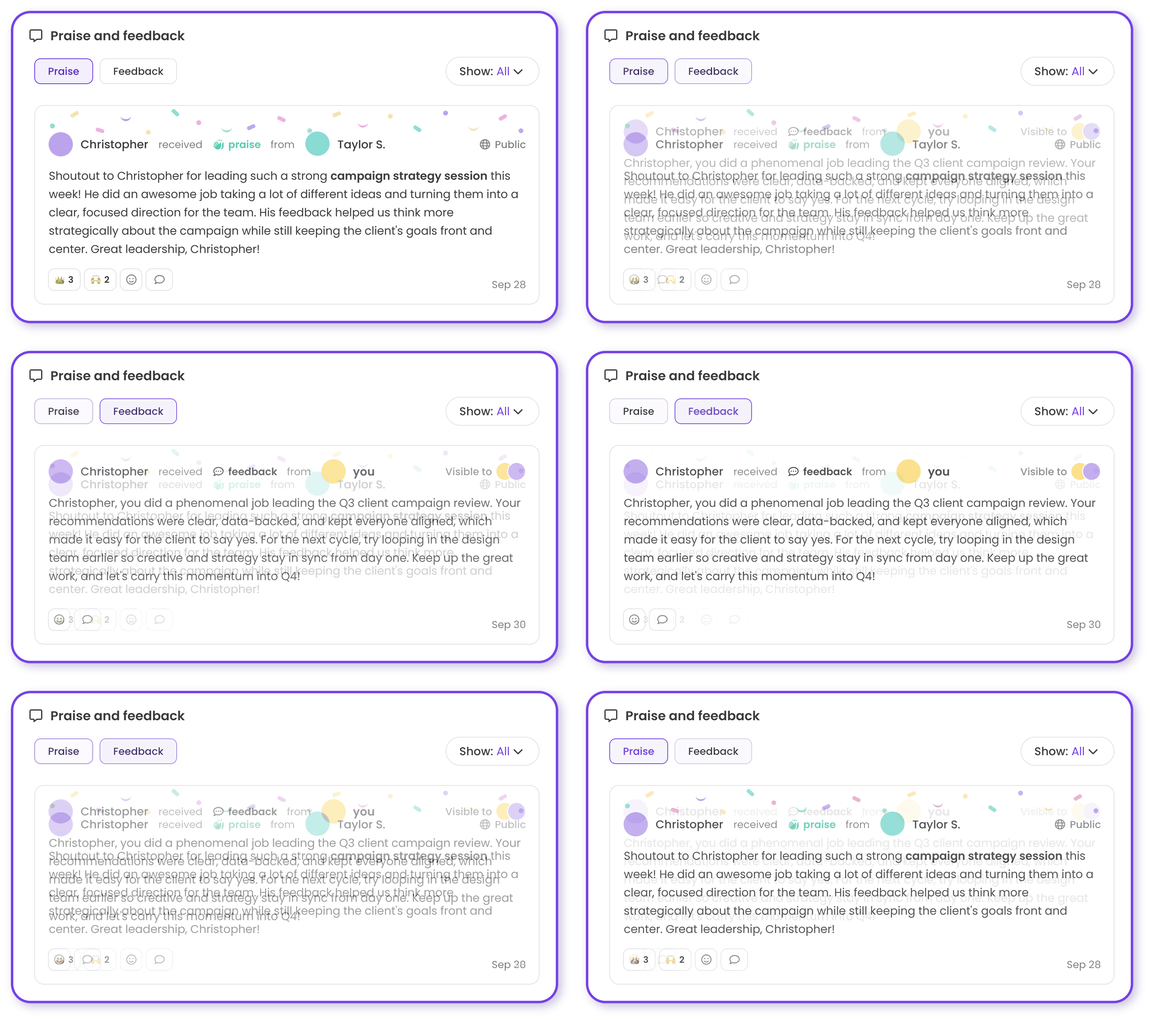
Scroll to the "Praise and feedback" section.
-
Switch between the "Praise" and "Feedback" buttons to see each type this person has received. You'll only see feedback you have permission to view.
| 💬 Filter praise and feedback: |
-
Scroll to the "Praise and feedback" section.
-
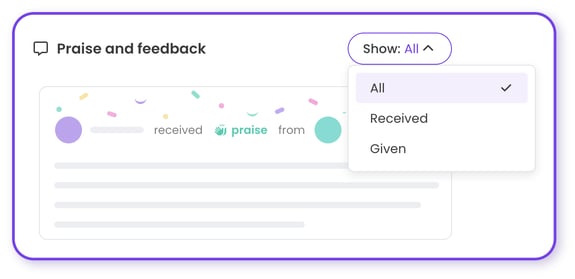
Click the "Show" drop-down.
-
Select a filter option: All, received, or given. The chart will auto-update.
Access review packets:
Keep a clean "paper trail" without all the paperwork. Every completed review packet is saved on an employee's Performance tab, ready to be accessed whenever you need it.
-
You can view your own shared review results, plus any review packets you've worked on as a reviewer.
- Managers can also view shared review results for employees in their reporting chain, and Billing Admins have broader access across the entire account.
- Only the assigned reviewer can publish a revision to shared results. Revisions allow updates to the review summary and growth areas, not the original submitted review answers.
📚 For a full walkthrough on this feature, see "Reviews." ↗
-
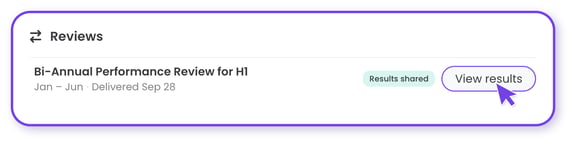
Scroll to the "Reviews" section.
-
Click "View results" for the review you'd like to open.
-
Scroll to the "Reviews" section.
-
Click "View results" for the review you'd like to edit.
-
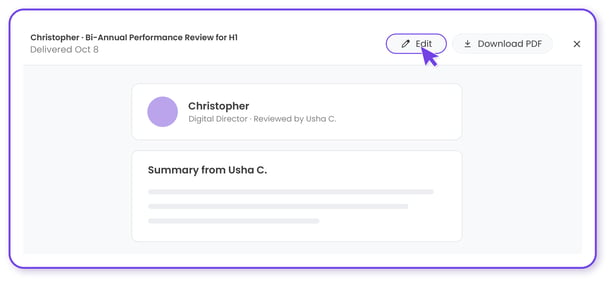
Hit the "Edit" button at the top of the packet.
-
Select "Start editing" in the "Edit this user's review summary?" pop-up.
-
Update the "Review summary" or "Growth areas" as needed.
-
Hit the "Continue" button.
-
(Optional) Preview what the employee will see.
-
Hit the "Publish update" button to share your changes.
📝 Please note: Publishing an update sends the employee an email and an in-app notification. The updated packet is available under their Performance tab.
-
Scroll to the "Reviews" section.
-
Click "View results" for the review you'd like to download.
-
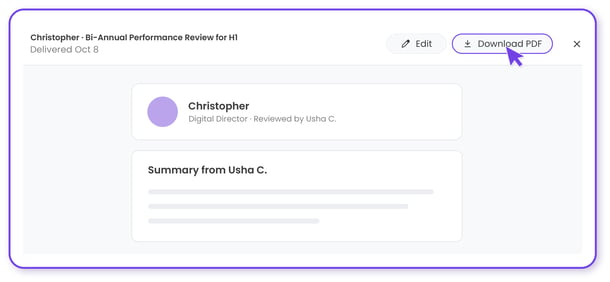
Hit the "Download PDF" button at the top of the packet.
-
Save the PDF to your device, or print it from your browser's print dialog.
Manage private notes:
Some thoughts aren't ready to share...yet! Use private notes to work through feedback, track progress, and plan talks about yourself or a teammate, visible only to you.
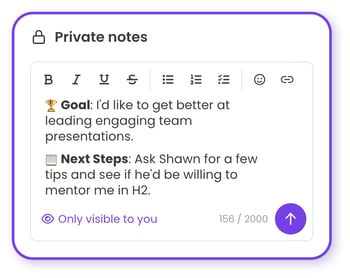
Private notes are visible only to the creator. You can add notes to your own Performance tab or to the Performance tab of anyone in your reporting chain, including indirect reports. Other managers, Billing Admins, and the employee can't see your notes.
-
Find the "Private notes" section on the right-hand side.
-
Write out your note in the text box.
-
Hit the arrow (↑) button to save it.
📝 Please note: The steps are the same whether you're adding a private note for yourself or someone else.
.png?width=350&height=270&name=private-notes-range-framed%20(1).png)
-
Find the "Private notes" section on the right-hand side.
-
Click the "Range" drop-down.
-
Select a time frame: All time, 1 month, 3 months, 12 months. Your notes view will auto-update.
🔥 Tip: Looking for a specific note? Click the magnifying glass to search by keywords.
-
Locate the "Private notes" section on the right-hand side.
-
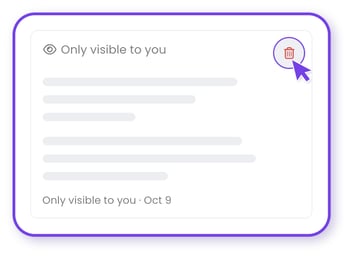
Hover over the note and click the trash can icon.
-
Hit the "Delete note" button in the pop-up to confirm.
📝 Please note: This action is permanent and cannot be undone or reversed.
Trainual AI + Performance tab
Trainual's AI goes beyond content and data — it's powered by your people, too! The more your team uses the Performance tools, the better AI tools can work for everyone.
| AI Feature: | Details: |
| ✨ Get overview |
Hit the "Get overview" button on an employee's profile for an instant, AI-generated summary of their performance over a selected period.
Think of a Performance overview as a cheat sheet that reads someone's profile for you before 1:1s, team planning, and reviews. |
| 🤖 AI assistant |
Trainual's AI assistant can help you find and understand Performance information you have permission to access, including praise and feedback, growth areas, private notes, and review activity. The assistant follows the same visibility rules as the rest of Trainual, so private information and data always stay protected. Just open your assistant from the sparkle icon (✨) in your top navigation bar and ask away. 💬 Try questions like:
|
.gif?width=425&height=333&name=performance-overview-scroll%20(1).gif)
Additional resources about the Performance tab:
🎁 Bonus learning
Take your user profiles into the stratosphere with these other great learning resources.
- Strategy guide: How to turn user profiles into a team culture tool.
FAQs:
How can I submit my feedback and ideas about features?
If you'd like to share your thoughts about Trainual user profiles or think of something else you'd like to see added in the future, send us your feature requests and ideas.
Learn more about managing people in Trainual:
- Create automated recurring check-ins that capture your team's progress.
- Align your people around shared company goals to drive measurable results.
- Track training progress by people or the company in this completion view.